How do I see faces while I'm in a voice room?
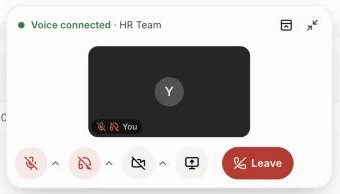
When you leave a voice room's page, the small voice panel shows everyone's face. Click the faces button to hide or show them.
When you're in a Team chat voice room and go to another page, a small voice panel follows you. It shows everyone's face, so you always see who is in the call. Click the faces button to hide the faces or show them again.
Also called: see faces in a call, video in the voice panel, mini call window, floating call, picture in picture, Discord voice panel, voir les visages, panneau vocal
Step 1: See the faces
Join a voice room in Team chat, then open any other page. The small voice panel shows a picture for each person: their camera, or their first letter when the camera is off. A blue ring shows who is talking, a red microphone shows who is muted, and red crossed-out headphones show who can't hear the room right now.
Click: Team chat › your voice room › any other page
Step 2: Hide or show the faces
Click the faces button at the top of the panel, beside the shrink button: a little window with a strip on top. The faces go away and the panel gets smaller. Click it again to bring them back. Alori remembers your choice on this computer, so the panel opens the same way next time.
Click: faces button (Hide the faces / Show the faces)

Good to know
Drag the panel from anywhere on it, even from a button, to move it anywhere on the page.
The shrink button turns the panel into a small round bubble. Click the bubble to open the panel again.
In the voice room's own page, the faces show big, not in the small panel.
When someone turns off the headphones button, everyone sees crossed-out headphones on their face and beside their name under the room in Team chat, so you know they can't hear you.