How do I see how my campaign did?
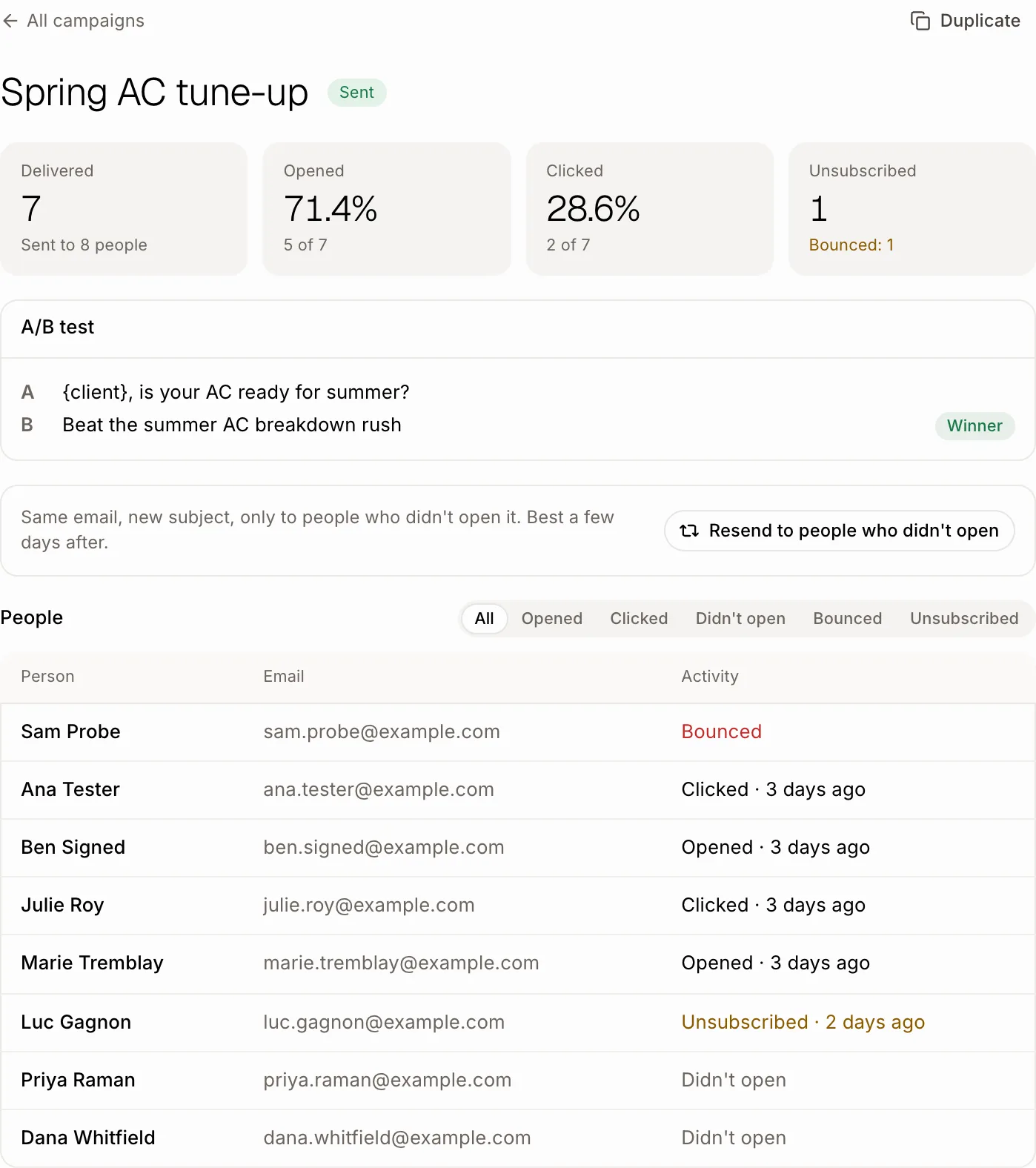
Open the campaign in Campaigns: you see how many got it, opened it and clicked, who unsubscribed, the A/B winner, and each person's activity.
Click Campaigns, then click a sent campaign. You see how many people it was Delivered to, how many Opened it and Clicked, who Unsubscribed, and what each person did. From there you can resend it to the people who didn't open it.
Also called: campaign report, open rate, click rate, statistics, résultats de campagne, taux d'ouverture
Step 1: Open the campaign
Click Campaigns in the left menu, then the campaign. The numbers at the top fill in as people open and click. With an A/B test, A/B test shows both subjects and the Winner: the one more people opened, which went to everyone else. Under People, pick Opened, Clicked, Didn't open, Bounced or Unsubscribed to see who did what. Click a person to open their customer record.
Click: Campaigns › the campaign › People › Didn't open
Step 2: Resend to people who didn't open
A day after you send, click Resend to people who didn't open. Alori makes a new draft with the same email and a new subject, for only those people. Read it over, then click Send now. It works best a few days after the first send.
Click: Resend to people who didn't open › Send now

If it doesn't work
Stopped on its own: too many emails bounced.: some addresses are old. Fix or remove them on the customer records, then click Resume sending.
Stopped on its own: people marked it as spam.: check who it goes to before you click Resume sending.
Stopped: you're out of credits.: add credits, then click Resume sending.
No opens yet: some email apps hide opens. Clicks are always counted.