How do I send messages from other apps to Team chat?
Open a channel, click Channel options, then Get messages from other apps. Create a link, paste it into the other app, and what it sends shows up in the channel.
Open a channel in Team chat, click Channel options, then Get messages from other apps. Click Create a link: it is copied for you. Paste it into the other app, and everything it sends shows up in the channel.
Also called: webhook, incoming webhook, integration, connect an app, notifications from another app, Zapier to chat, alerts in a channel, Sentry alerts, error alerts, webhook entrant, intégration, recevoir des messages d'autres apps
Use it to bring everything into one place: new leads from your website form, orders from your online store, alerts from a monitoring tool, or a Zapier or Make step.
Step 1: Open the channel's options
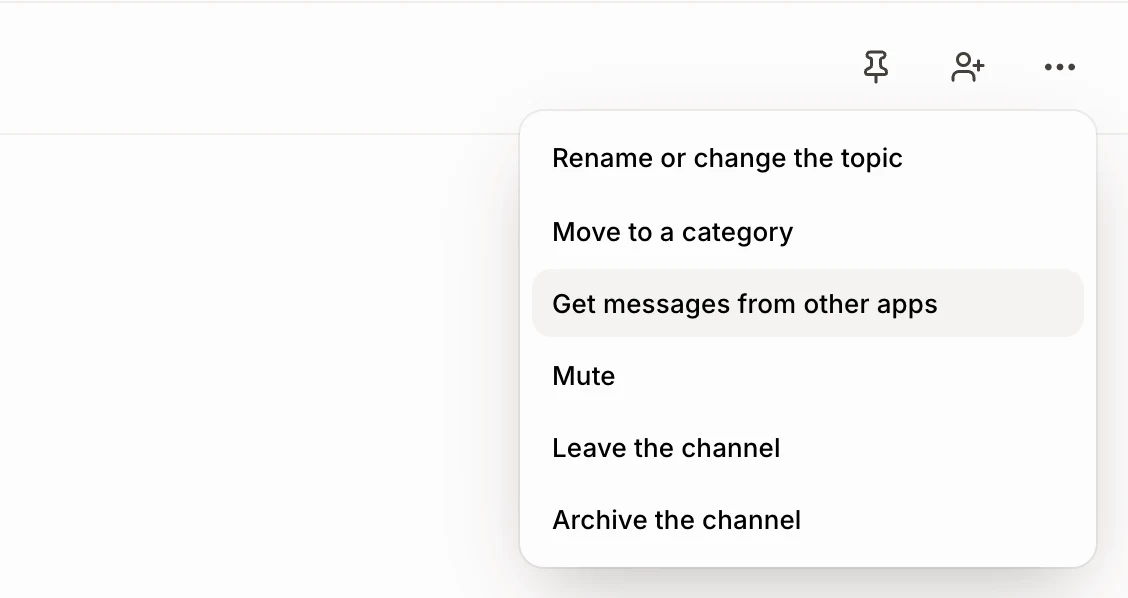
Open the channel the messages should go to, for example a #leads or #alerts channel. Click the Channel options button (the three dots at the top), then Get messages from other apps.
Click: Team chat › your channel › Channel options › Get messages from other apps
Step 2: Create a link
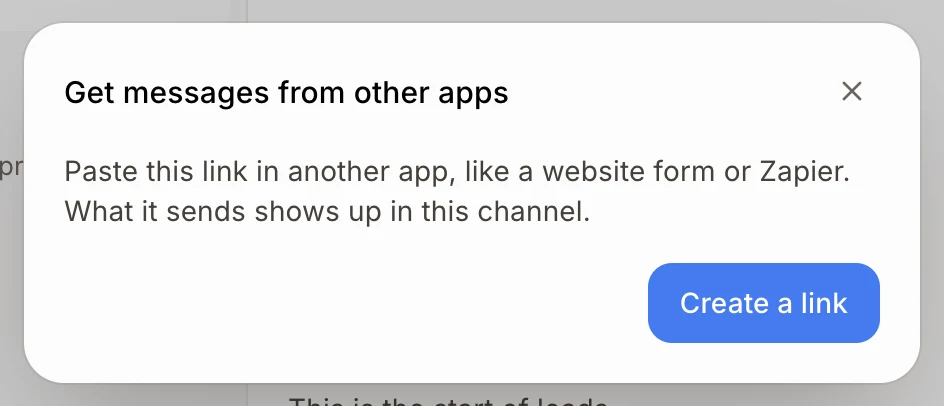
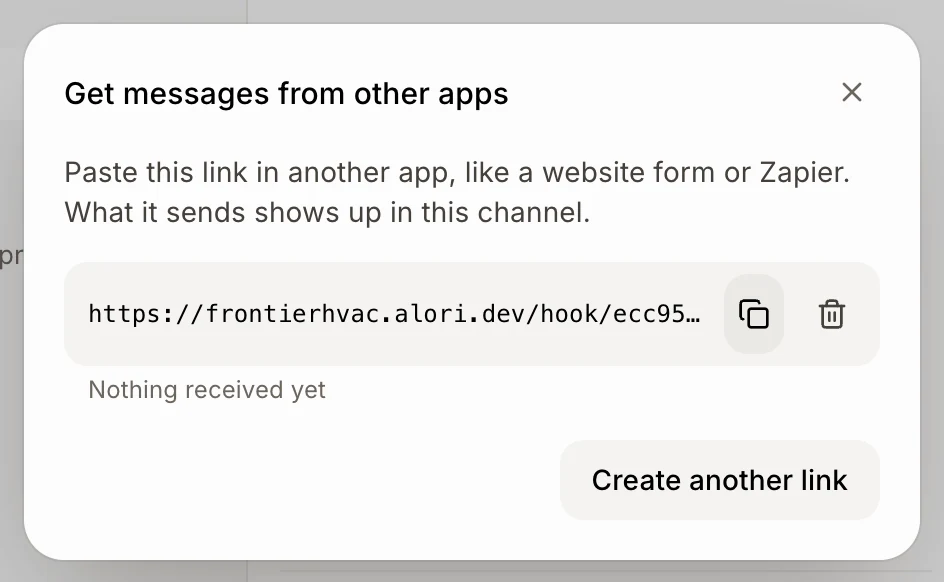
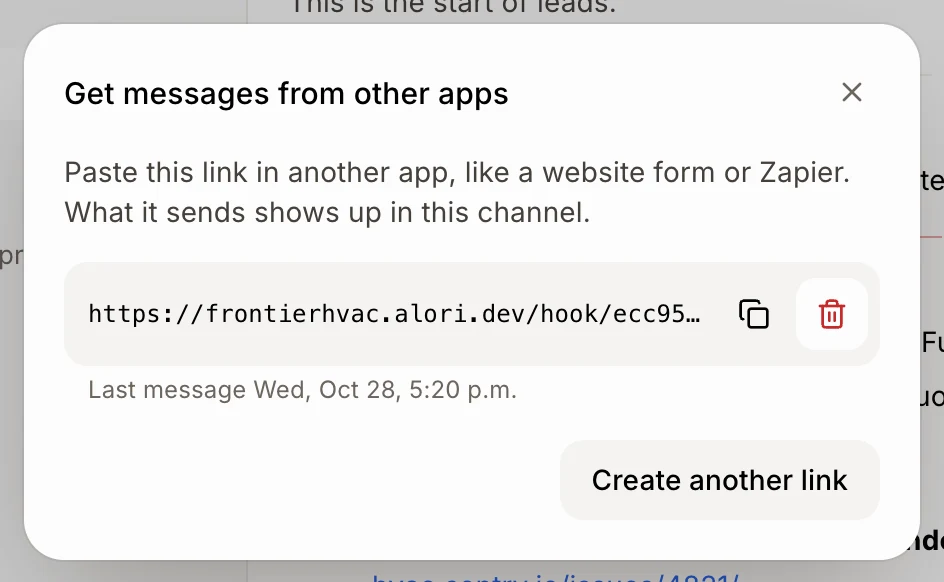
Click Create a link. The link is copied for you, and it stays in this window with a Copy button. It is on your app's own address, like https://your-business.alori.dev/hook/….
Click: Create a link
Step 3: Paste the link in the other app
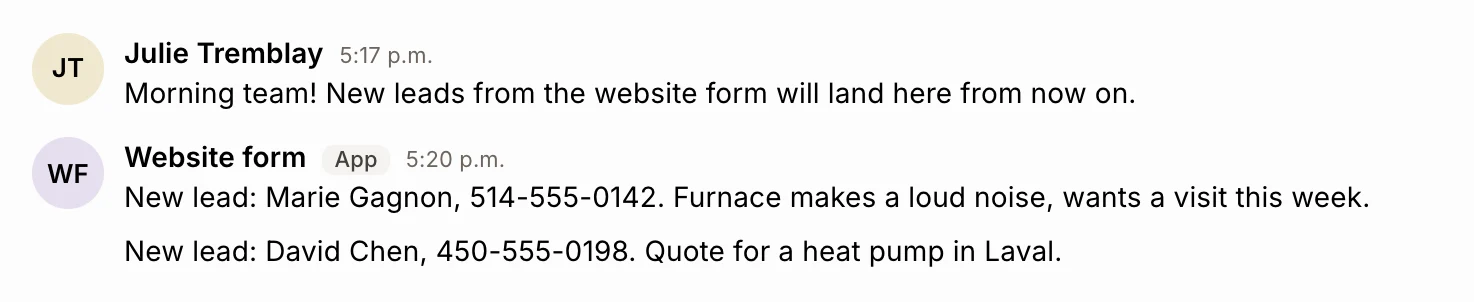
In the other app, find where it asks for a webhook URL and paste the link. If the app already supports Slack or Discord webhooks, choose that option: the link works the same way. Messages show under the name the app sends, or "App".
From Sentry: in Sentry, open Settings › Integrations › WebHooks, turn it on for your project and paste the link under Callback URLs. Then, in an alert rule, add the action Send a notification via WebHooks. Each alert shows up with the error's title, its link to Sentry and where it happened. A Sentry internal integration's webhook URL works too.
For a developer: send a POST with JSON like {"text": "New lead: Marie Gagnon"}. Slack's text, attachments and blocks, Discord's content and embeds, Sentry's alerts, and username (the name for that one message) all work. @channel notifies everyone in the channel. A link can send up to 60 messages a minute.
Step 4: Delete a link
Open Get messages from other apps again and click the trash icon next to the link. It stops working right away. The messages it already sent stay in the channel. Whoever created the link, the channel's creator and admins can delete it.
Click: Channel options › Get messages from other apps › trash icon
If it doesn't work
I don't see Get messages from other apps. It isn't in direct messages, archived channels or for guests. Open a channel you can write in.
"This channel has as many links as it can (10)." Delete a link you no longer use first.
The other app says 404. The link was deleted or is incomplete. Copy it again.
The other app says 410. The channel is archived. Unarchive it from Channel options.
The other app says 429. It sent more than 60 messages in a minute. They go through again the next minute.
Nothing shows up. Check that the other app sends a POST with some text in it. An empty message is refused (400).