How do I write a campaign in my own HTML?
On step 1 Email of a campaign, click Edit the HTML, change the code, and check the preview. Alori adds the footer for you.
Open a campaign draft, click Edit the HTML under the email, and change the code. The preview on the right updates as you type. Alori adds the footer at the bottom of every email, so you don't need to write it.
Also called: HTML email, custom HTML, code editor, email template code, source code, campagne en HTML, courriel HTML, code HTML
Step 1: Open the HTML
Open a draft in Campaigns. On step 1 Email, click Edit the HTML under the email. You get the email you wrote so far as HTML, ready to change.
Click: Campaigns › your draft › Edit the HTML

Step 2: Change the code
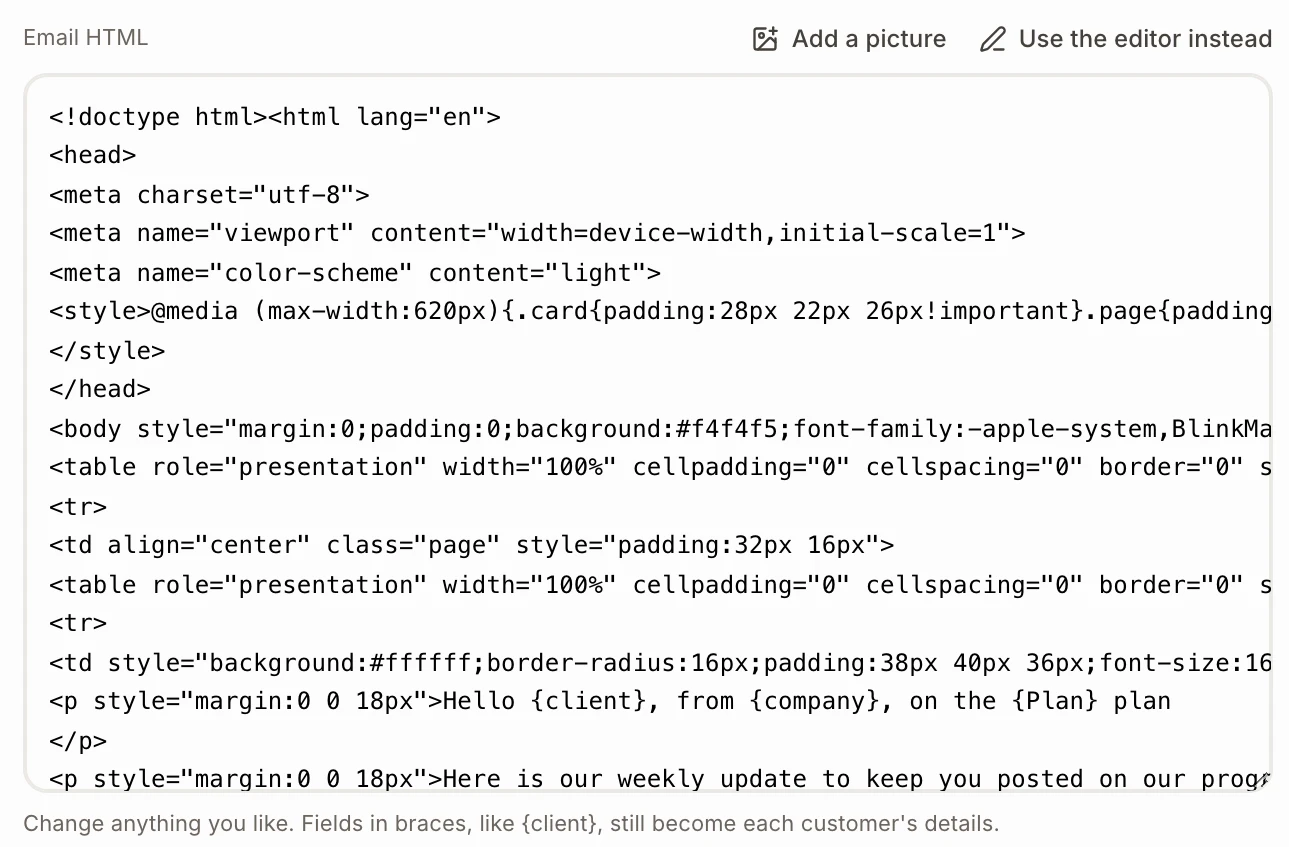
Change anything in Email HTML: the layout, the colours, the fonts, the buttons. Fields in braces still work, like {client} for each customer's first name or {company}. To add a picture, click Add a picture: it goes where your cursor is. Inline styles show best in mail apps like Outlook and Gmail.
Click: Email HTML › change the code › Add a picture
Step 3: Check the preview and send it
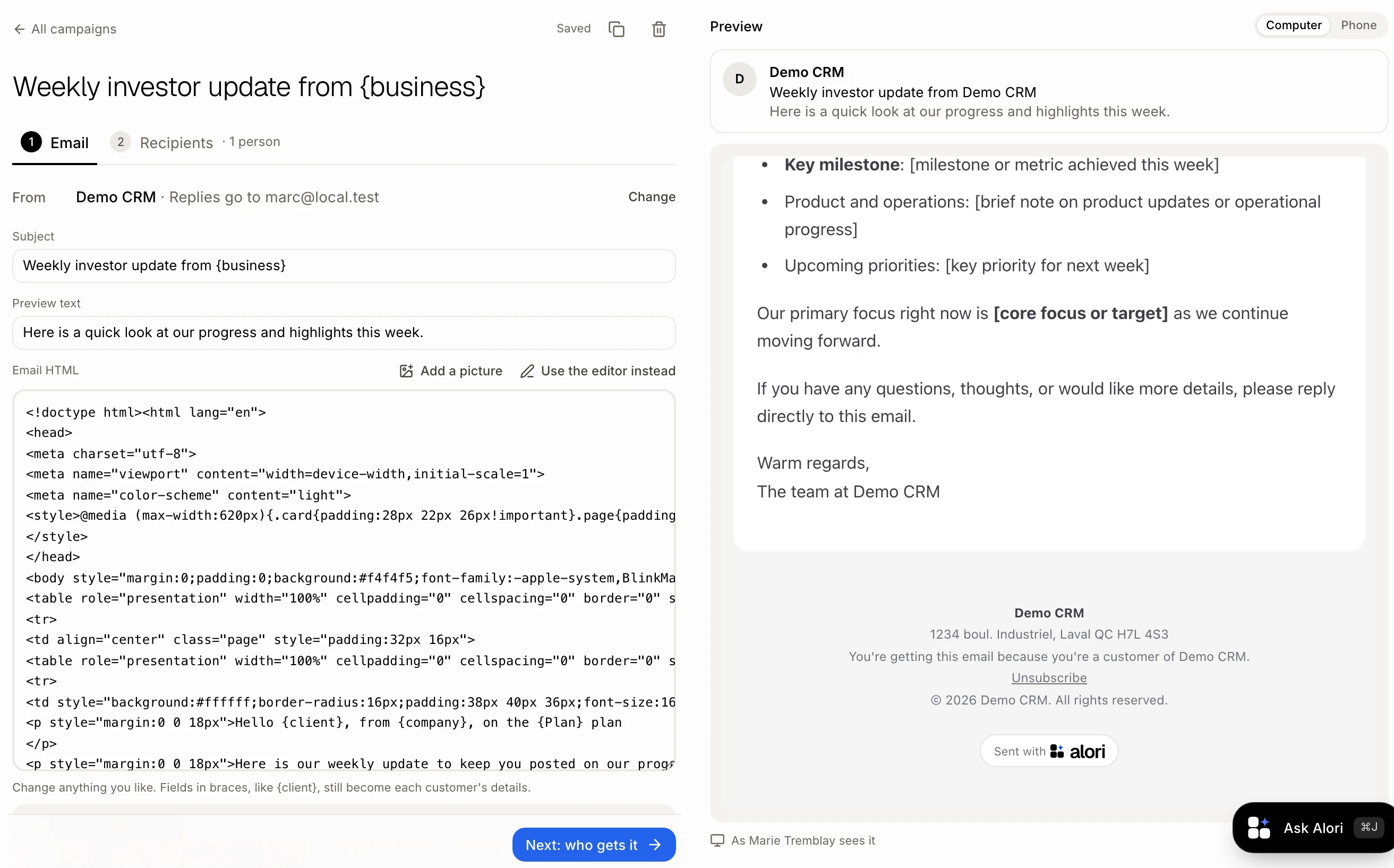
The preview on the right shows the email as customers will get it, footer included. Click Next: who gets it to pick who gets it. On step 2 Recipients, Send me a test sends it to your own inbox first.
Click: Next: who gets it › Send me a test
The footer
Every email ends with your business name, your mailing address, why the person gets it and an Unsubscribe link, as the law (CASL, CAN-SPAM) requires. Alori adds it under your HTML, so you can't remove or hide it. To change the address, click Change next to From.
Go back to the editor
Click Use the editor instead, then Use the editor. Your HTML changes are lost, and the email goes back to what it was in the editor.
If it doesn't work
Write the email first. The HTML has no words or pictures in it.
A field shows as {something}. Check its spelling. It has to match a field name, like {client} or one of your customer fields.
Copied as is: translate the words in the HTML. When you add a French or English version to an HTML email, translate the words in its HTML yourself.