How do I approve time off requests?
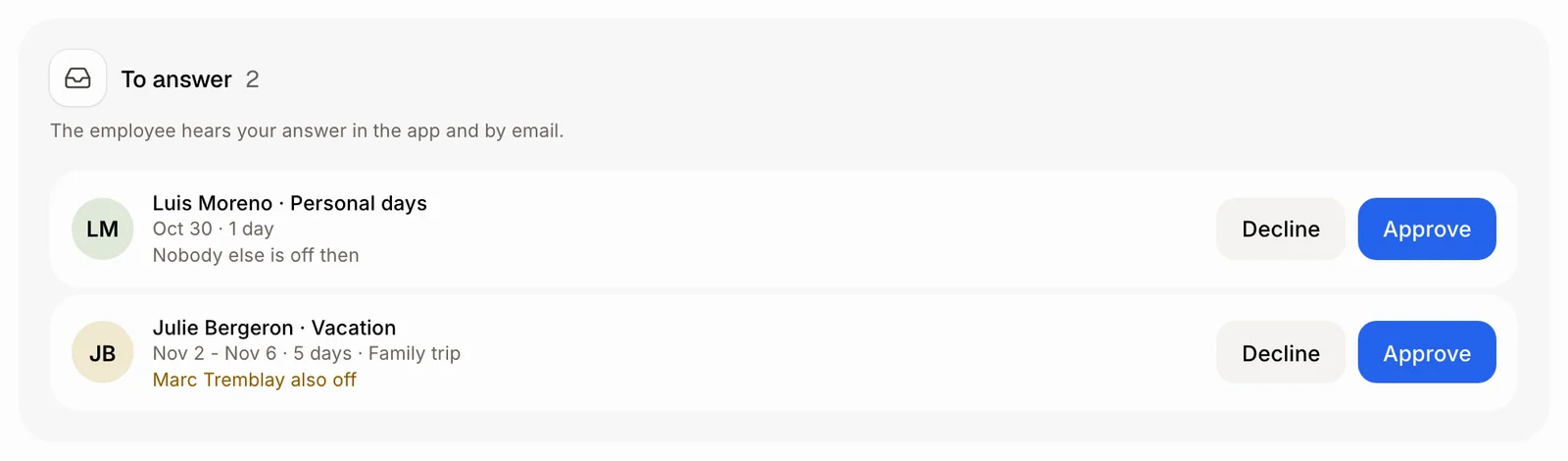
Go to Employees › Time off. Each request waits under To answer: click Approve or Decline. The employee hears your answer in the app and by email.
Go to Employees › Time off. Every request still waiting is under To answer: click Approve or Decline on it. The employee hears your answer in the app and by email.
Also called: leave request, vacation request, day off, approve vacation, PTO request, demande de congé, approuver des vacances, congés, refuser un congé
Step 1: Open To answer
Go to Employees › Time off. To answer lists each waiting request, soonest first: who, the kind of time off, the dates and the number of days. Under it, Alori says who else is off then, or "Nobody else is off then". On a phone, tap Time off in the row of sections at the top.
Click: Employees › Time off › To answer
Step 2: Approve or decline
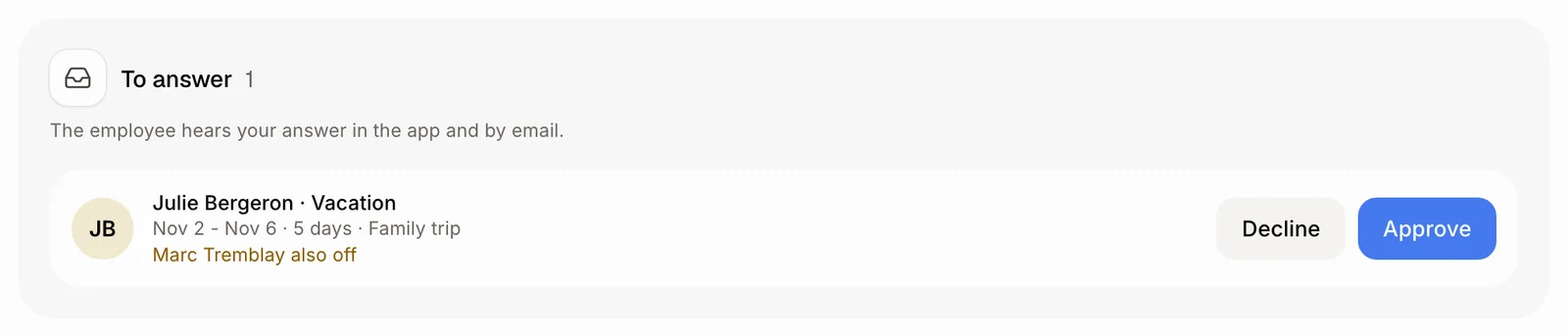
Click Approve or Decline on the request. Alori says "Done." and the request leaves the list. The employee gets your answer in the app and by email. You also get a notification for each new request.
Click: the request › Approve
Step 3: See who is off
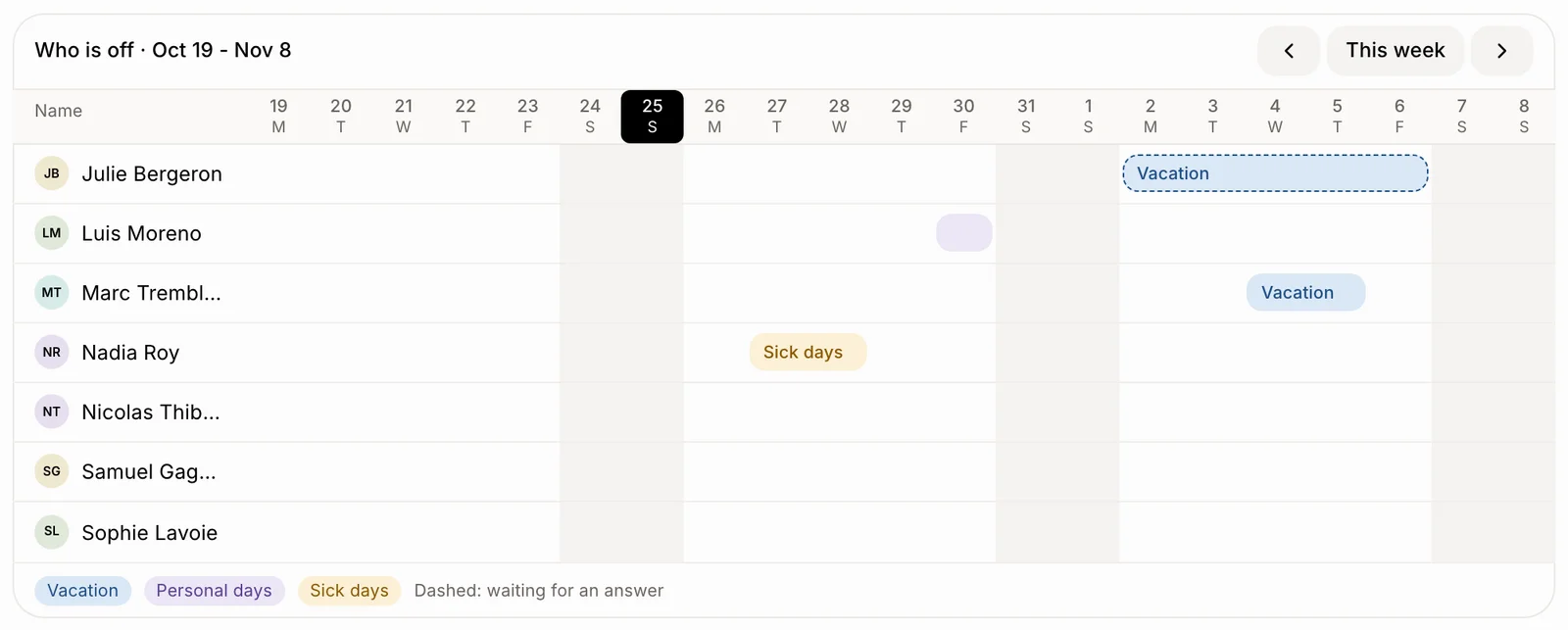
On a computer, the week-by-week chart under To answer shows everyone's time off. A dashed bar is still waiting for an answer. Use the arrows to move a week at a time, and This week to come back. On a phone, Who is off lists the approved time off of the next four weeks.
Good to know
The Overview also shows Time off to approve, with the same two buttons.
To add time off for someone yourself, click Add time off.
Only people who can edit employees see Approve and Decline.
You can ask Ask Alori: "Approve Julie's vacation request" or "Who is off next week?"
If it doesn't work
"That request was already answered." Someone else answered it first. The list updates by itself.
"Nothing to answer. New requests appear here and in your notifications." No request is waiting.
No Approve button. You can see employees but not edit them. Ask an admin for edit access.