How do I use the Employees home page?
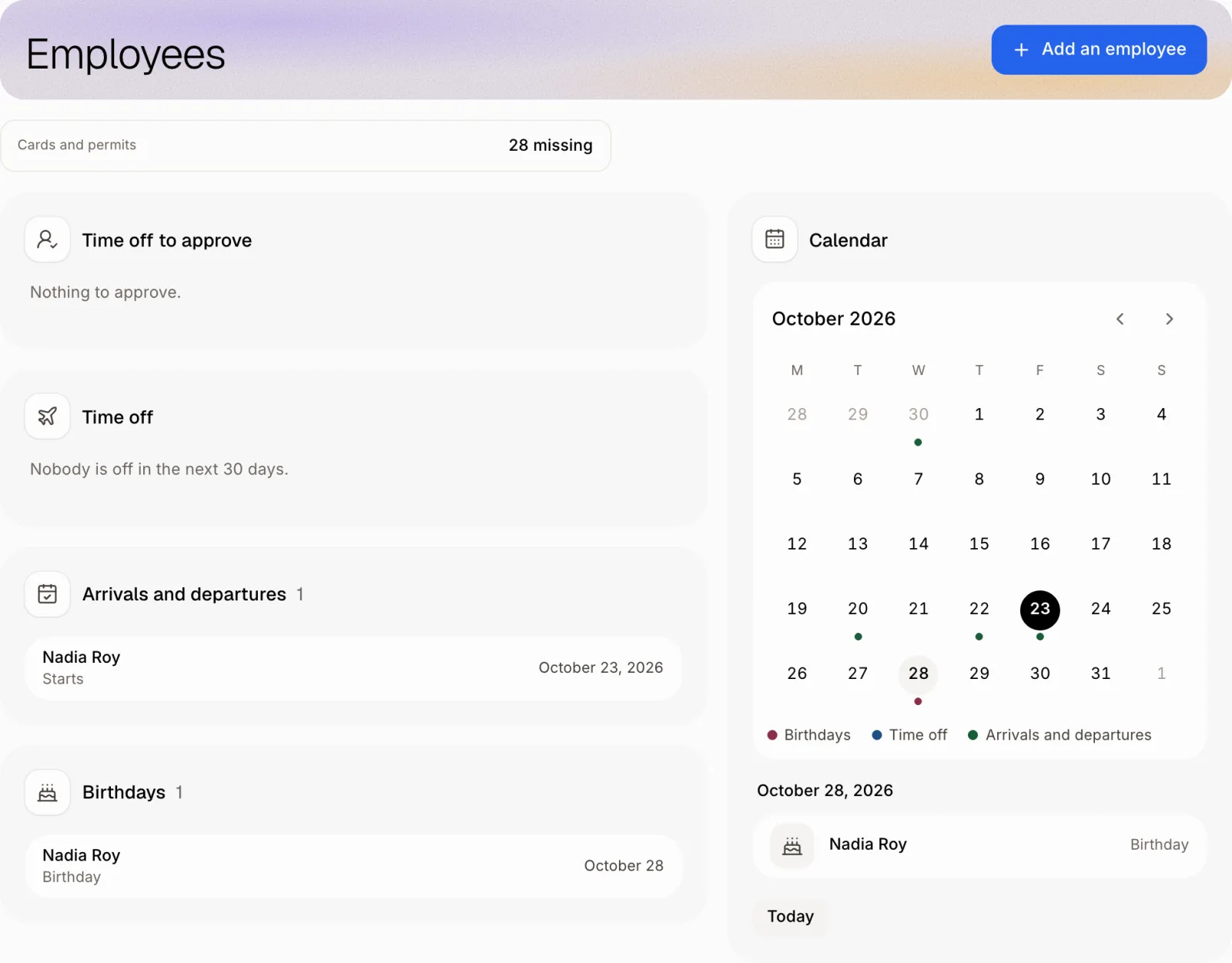
Click Employees. The home page shows time off to approve, the next 30 days and a calendar with birthdays, time off, arrivals and departures.
Click Employees in the menu. Its home page shows the time off waiting for your answer, what happens in the next 30 days, and a calendar with a dot for each birthday, time off, arrival and departure. The list of people is under Team.
Also called: HR dashboard, team calendar, birthdays, upcoming leave, tableau de bord RH, accueil employés, anniversaires, congés à venir, arrivées et départs
Step 1: Open the Employees home
Click Employees in the menu. At the top, Time off to approve lists every request still waiting: click Approve or Decline right there. Under it, Time off, Arrivals and departures and Birthdays show the next 30 days. Click a person to open their file. Timesheets to approve and missing cards show above, when there are any.
Click: Employees
Step 2: Look at the calendar
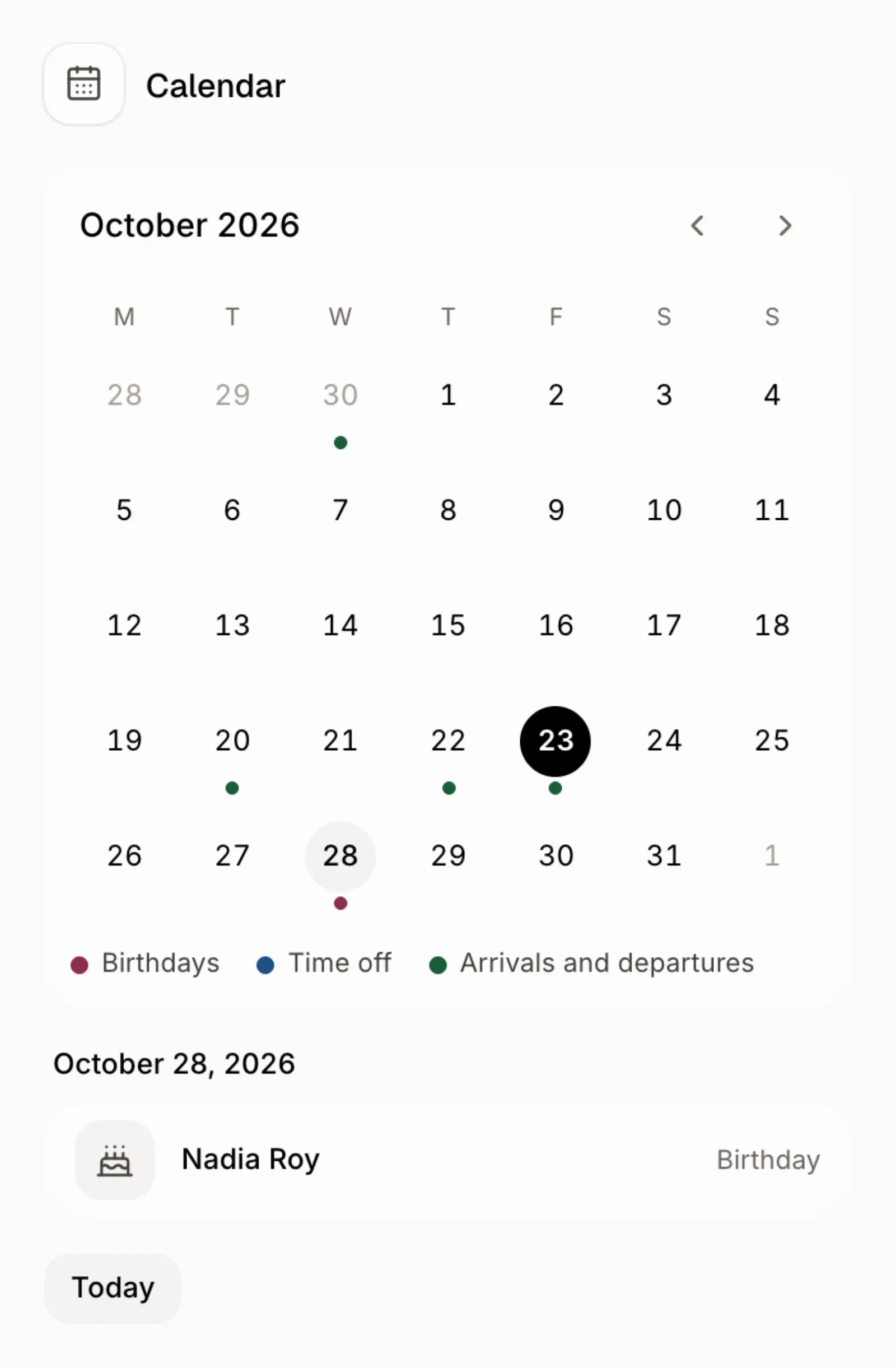
The Calendar shows a month. Each day has a dot for what happens: a birthday, time off, or an arrival or departure (the colours are in the legend). Click a day to see who is behind each dot. Use the arrows to change month, and Today to come back.
Good to know
Birthdays come from the Birthday field on each employee's file. Add it with Edit, or employees add their own from their page.
Arrivals come from the hire date, departures from End employment.
Only people who can see employees get this page. Only people who can edit employees can approve time off.
You can ask Ask Alori: "Whose birthday is this month?" or "Who starts next week?"
If it doesn't work
Birthdays is empty. It says "Add birthdays in each employee's file to see them here." Add a birthday to someone's file.
No Approve button. You can see employees but not edit them. Ask an admin for edit access.