How do I end an employee's employment?
Open the employee, click End employment, pick the departure date and the reason, then Confirm. Nothing is deleted.
Open the employee, click End employment, pick the Departure date and the Reason for leaving, then click Confirm. They become inactive, their history stays, and their Last day list starts.
Also called: terminate, offboard, let go, resignation, mark as inactive, terminer l'employé, départ, démission, congédiement, fin d'emploi
Step 1: Click End employment
Go to Employees › Team and open the person. At the top right, click End employment.
Click: Employees › Team › the person › End employment

Step 2: Pick the date and the reason
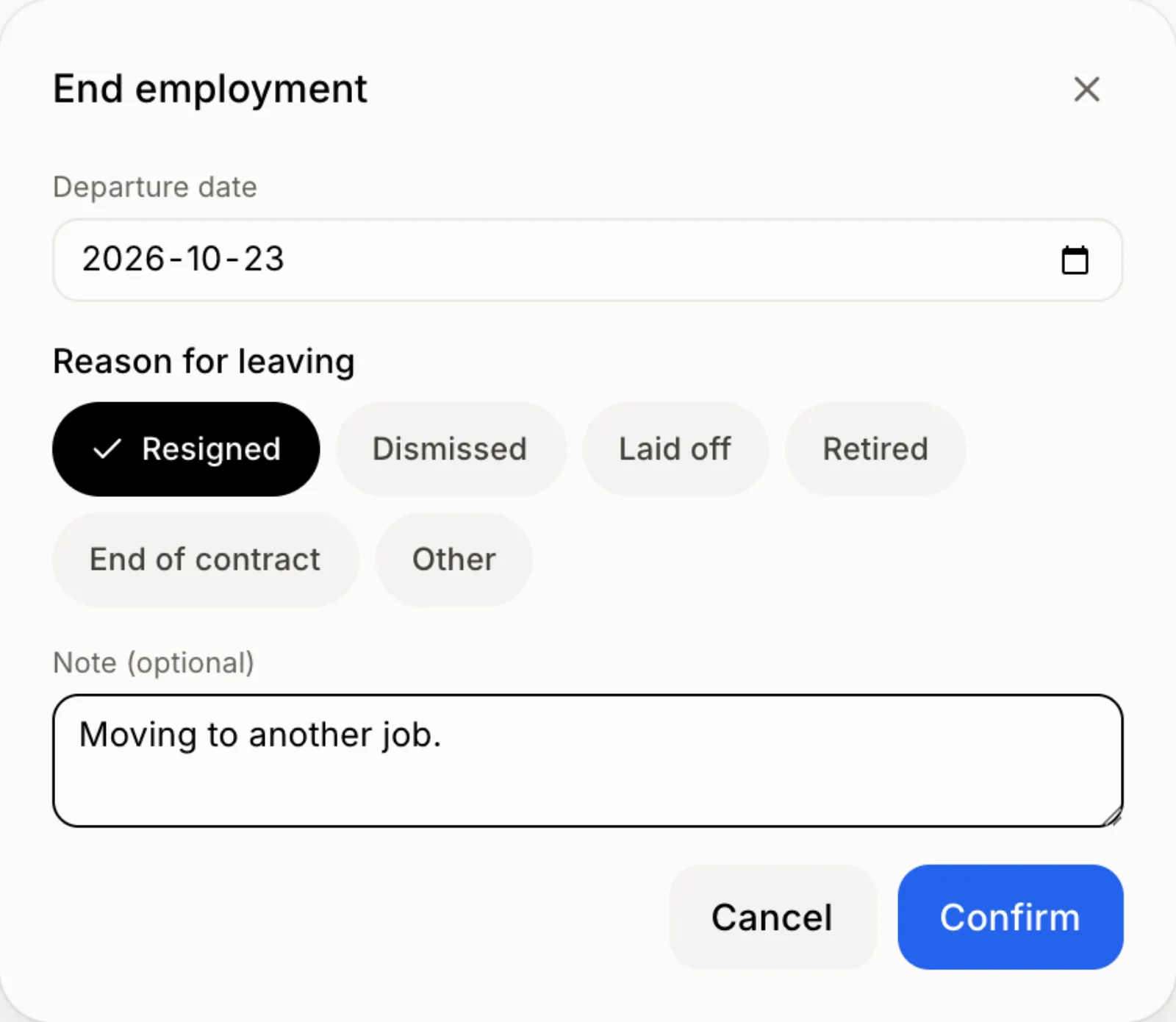
The Departure date is today; change it if needed. Tap the Reason for leaving: Resigned, Dismissed, Laid off, Retired, End of contract or Other. Add a short Note (optional) if you want, then click Confirm. The file then shows "Inactive since" the date, with the reason.
Good to know
Nothing is deleted. To bring someone back, open their file and click Bring back.
The Last day list starts: equipment, last pay, Record of Employment, app access.
If you click outside the window after typing, it stays open. Use Cancel or ✕ to close it.
You can ask Ask Alori: "End Marc's employment today, he resigned."
If it doesn't work
"Check the date." The departure date is before their hire date.
No End employment button. You can see employees but not edit them.