How do I get more Google reviews?
Reviews texts each customer a one-tap survey after a job. Happy customers go straight to your Google review page.
Open Reviews and pick your business on Google once. From then on, 2 hours after you mark a job done, the customer gets a text asking how it went. One tap answers. Happy customers see a button that opens your Google review page, ready to write. Unhappy ones land in Conversations, marked Needs you.
Also called: Google review requests, review management, ask for reviews, reputation, avis Google, demander un avis, gestion des avis
Step 1: Pick your business on Google
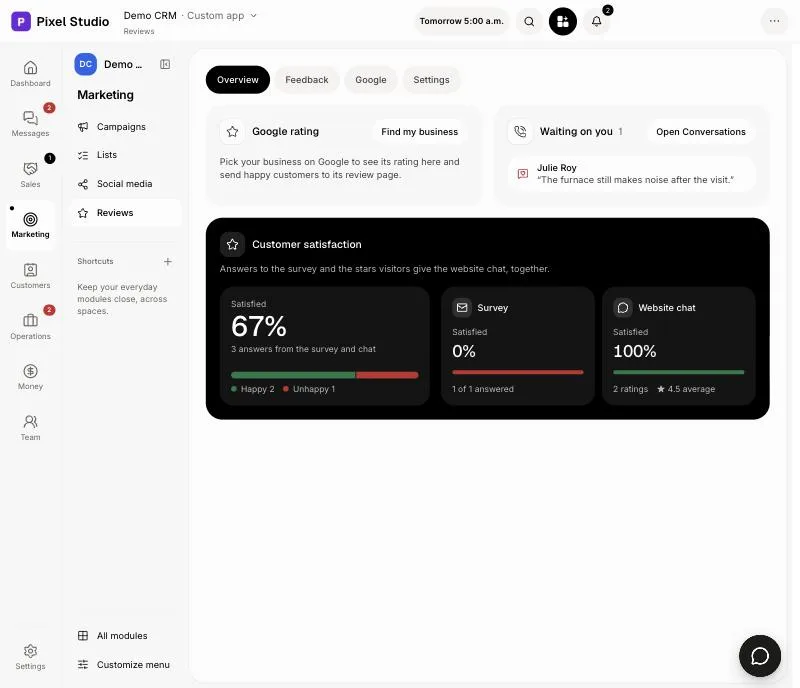
In your CRM, click Reviews. Under Google rating, click Find my business. Type your business's name and city, then pick it in the list. Your rating shows on Overview, and the review button now opens your Google review page.
Click: Reviews › Find my business
Step 2: Check when and how customers are asked
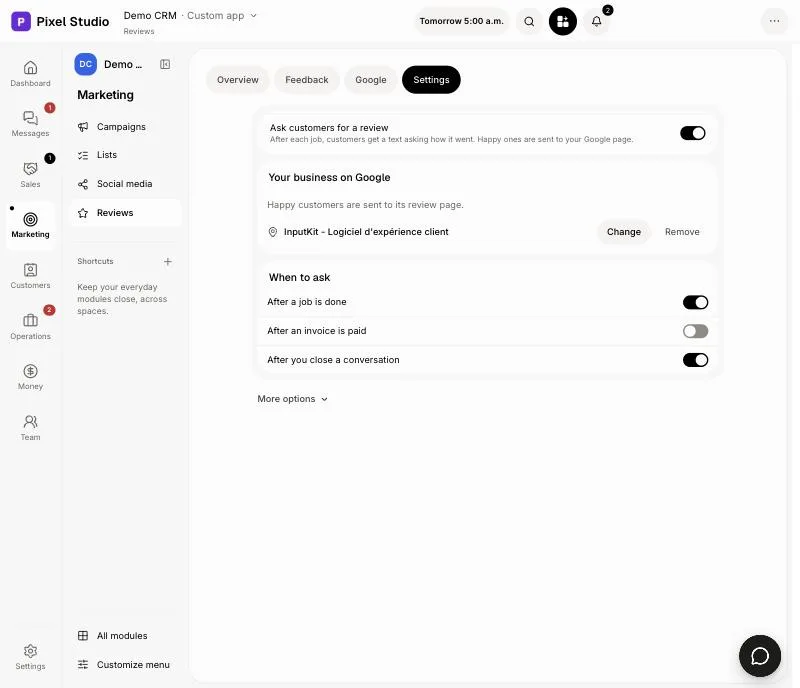
Open Settings. Ask customers for a review is on. Under When to ask, After a job is done and After you close a conversation are on from the start. Turn on After an invoice is paid if you prefer. Each change saves on its own. Everything else is under More options and already set: under Timing, Remind once the next day sends one reminder to those who haven't answered; under Other choices, How to ask is Text first, which gets the most answers (customers without a mobile number get an email).
Click: Reviews › Settings
Step 3: Choose who sees the review button
Under More options › Other choices, Only ask happy customers for a review is on from the start: only 4 or 5 stars, a smile, 9 or 10, or a thumbs up see the button. Google's rules ask businesses to invite every customer, not just happy ones. Turn it off to show the button to everyone; unhappy customers then see it under the comment box, after you have heard from them.
Click: Reviews › Settings › More options › Only ask happy customers for a review

Step 4: Choose when the conversation opens
Under More options › Other choices › Open the conversation, Only when unhappy is picked from the start: an unhappy answer opens the customer's conversation in Conversations, marked Needs you, and the rest stay out of your inbox. Pick When they answer to see every answer there, or When the survey goes out to see the survey itself. The answer always shows in the customer's conversation.
Click: Reviews › Settings › More options › Open the conversation

Step 5: Ask one customer now
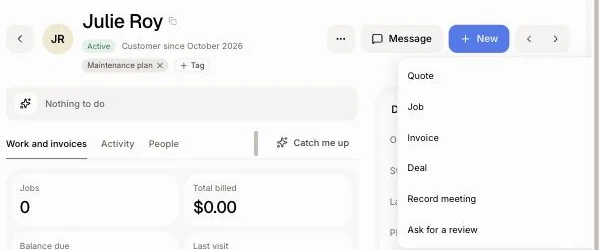
Open a customer, click New, then Ask for a review. The survey goes out right away, even if they got one lately. You can also ask Alori: "ask Marie Tremblay for a review".
Click: Customers › a customer › New › Ask for a review
Good to know:
Texts go out during the day only (8 a.m. to 6 p.m. in your time zone). A job done in the evening is asked about the next morning.
A customer gets one survey per job, and at most once in the period you pick under Ask the same customer at most.
Went to write a review on Overview counts the customers who pressed the button in the last 30 days.
If it doesn't work
Surveys go out once your app is published, so their links have an address. Publish your app.
Surveys are off. Customers aren't asked how it went. Click Turn on.
Nothing found. Try the name as it shows on Google Maps. Search with the exact name and the city.
This customer has no email or mobile number. Add one on the customer, then try again.
The survey didn't go out. Check the customer's email or mobile number, then try again. The text and the email both failed, so nothing was sent. Fix the number or the address on the customer and click Ask for a review again.
Without texting set up, surveys go out by email.