How do I publish my changes automatically?
Turn on Auto publish in Settings. Each change and update then goes live for your team right away, without clicking Publish.
Turn on Auto publish in your Alori Settings. Each change you ask for, and each update, then goes live for your team right away. You never have to click Publish.
Also called: auto-publish, publish automatically, go live automatically, automatic updates, publication automatique, publier automatiquement, mise en ligne automatique
Step 1: Turn on Auto publish
Click your name at the top right, then Settings. Under Publishing, turn on Auto publish. It saves right away. Anything already waiting goes live too.
Click: your name › Settings › Publishing › Auto publish
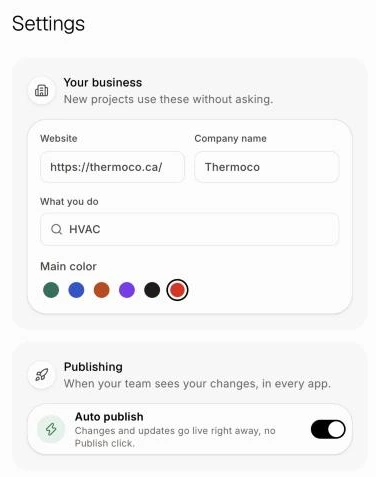
Step 2: Keep working
Ask for changes in the chat, or click Upgrade when a new Alori version is out. When each one is done, it goes live for your team by itself, like when you click Publish.
Good to know
Your whole account. Auto publish covers every app and project on your Alori account.
Turn it off anytime. Turn the switch off, and the Publish button is back at the top of your screen when something is waiting.
Undo anytime. Every update is kept. To go back, see How do I undo a published update?
Ask your bot. You can also say "turn on auto publish" to your bot, in the Chat, or to Claude.
If it doesn't work
A change isn't live yet. Another publish was still running. Alori tries again a minute later, so wait a moment.
"Publishing didn't work, so your team's app wasn't changed." Nothing changed for your team. Click Publish at the top of your screen to try again.