How do I pull my data into Power BI, Excel or another reporting tool?
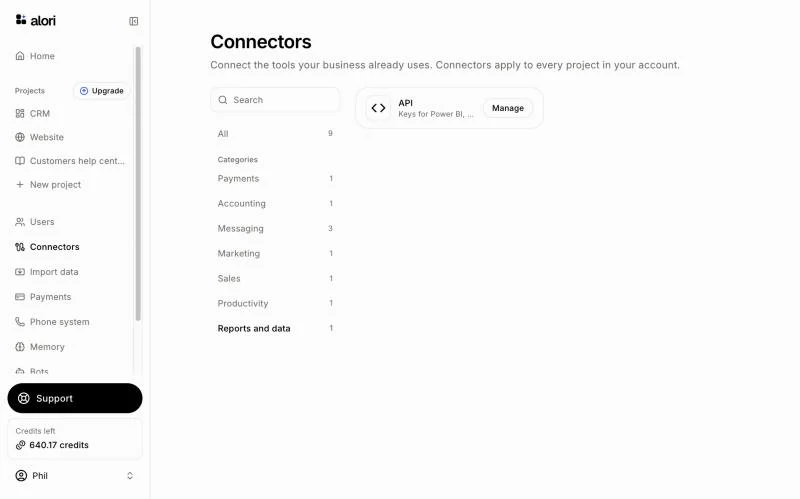
In Connectors, click Manage on API, then New key, and keep Reports (read only). Your reporting tool reads your records with that key and can't change anything.
Open Connectors, click Manage on API, then click New key and keep Reports (read only). Give that key to whoever sets up your reports: Power BI, Excel or your data warehouse reads your customers, deals, quotes, jobs and invoices with it. A Reports key can't change anything.
Also called: reporting, BI, business intelligence, Power BI, Excel, Looker, Tableau, data warehouse, export, data API, read-only key, rapports, exportation, entrepôt de données, clé en lecture seule
Use this when you need your Alori data in another tool for reports. Each key works for your app only.
Step 1: Open the API page
In the side menu, click Connectors. On the API card, click Manage. You can also pick the category Reports and data. The page Data API shows your Base URL, your keys and a guide for your developer.
Click: Connectors › API › Manage
Step 2: Make a Reports key
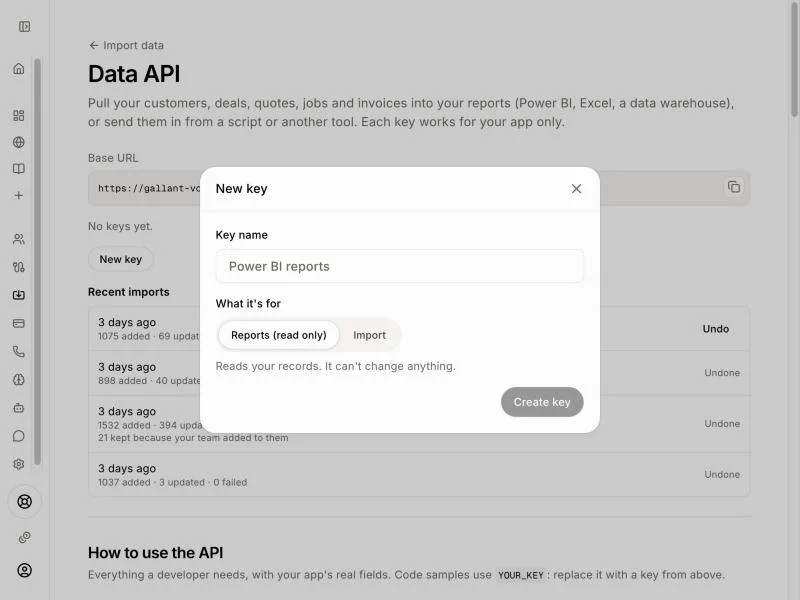
Click New key and type a Key name (for example "Power BI reports"). Under What it's for, keep Reports (read only): it reads your records and can't change anything. Click Create key, then Copy right away: for your security, it won't be shown again.
Click: New key › Reports (read only) › Create key › Copy
Step 3: Connect your reporting tool
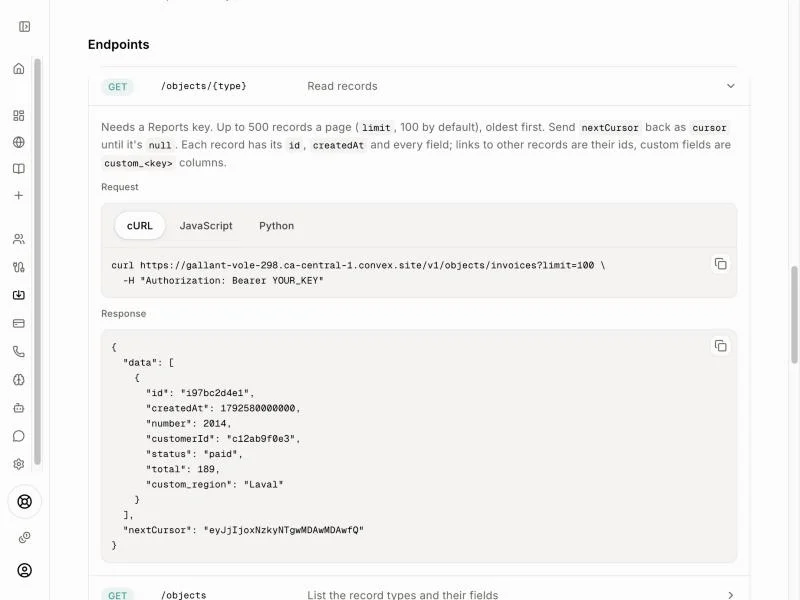
Give the key and the Base URL to whoever sets up your reports. Under How to use the API, the Read records endpoint shows how to read each record type, a page at a time, with code samples. Each record comes with its id, when it was created and every field, your custom fields included.
Click: How to use the API › Endpoints › Read records
Good to know
Up to 500 records per page, and 120 requests a minute per key.
Your tool reads the record types listed under Fields in your app: customers, companies, contacts, deals, pipelines, quotes, jobs, invoices, price items, notes, communications, tasks and custom fields.
A key shows Reports (read only) or Import under its name in the list.
To stop a key, click Revoke. Tools using it stop working right away.
If it doesn't work
"The key can't do this: a Reports key only reads, an Import key only imports." Make a new key with Reports (read only) picked.
"The key is missing, wrong or revoked." Make a new key and use it.
"Your app isn't ready for the API yet, or the import is already undone." Your app needs an update: open it, publish or upgrade it, then try again.
"Too many requests. Wait a minute and try again." Slow down to 120 requests a minute.