How do I reply to an email from a deal's history?
In the History, click Reply all (or Reply) next to the email's time, write your answer right under it, then click Send. Forward sends it to someone else.
Open the deal (or the customer), find the email in the History, click Reply all next to its time, write your answer in the box that opens right under it, then click Send. It goes to the person the email was with, and everyone else who was on it is copied, like Reply all in Gmail.
Also called: reply all, answer an email, respond, forward, répondre à tous, répondre à un courriel, répondre, transférer
Step 1: Find the email
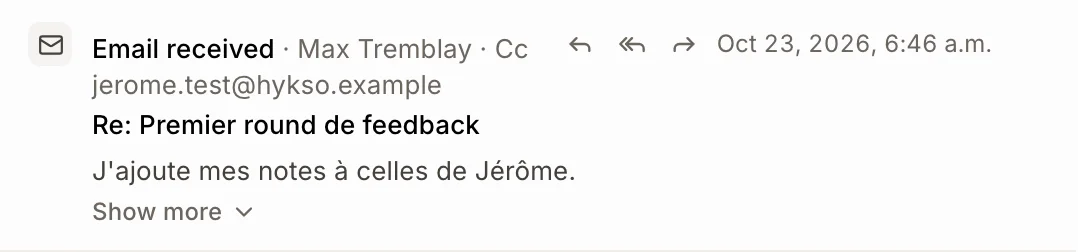
Open the deal from Leads & deals (or the customer from Customers). In History, the email's buttons sit next to its time: Reply (one arrow) answers only the person, Reply all (two arrows) answers everyone on it, and Forward (arrow to the right) sends it to someone else. Reply all shows only when others were on the email.
Click: Leads & deals › the deal › Reply all
Step 2: Write your answer
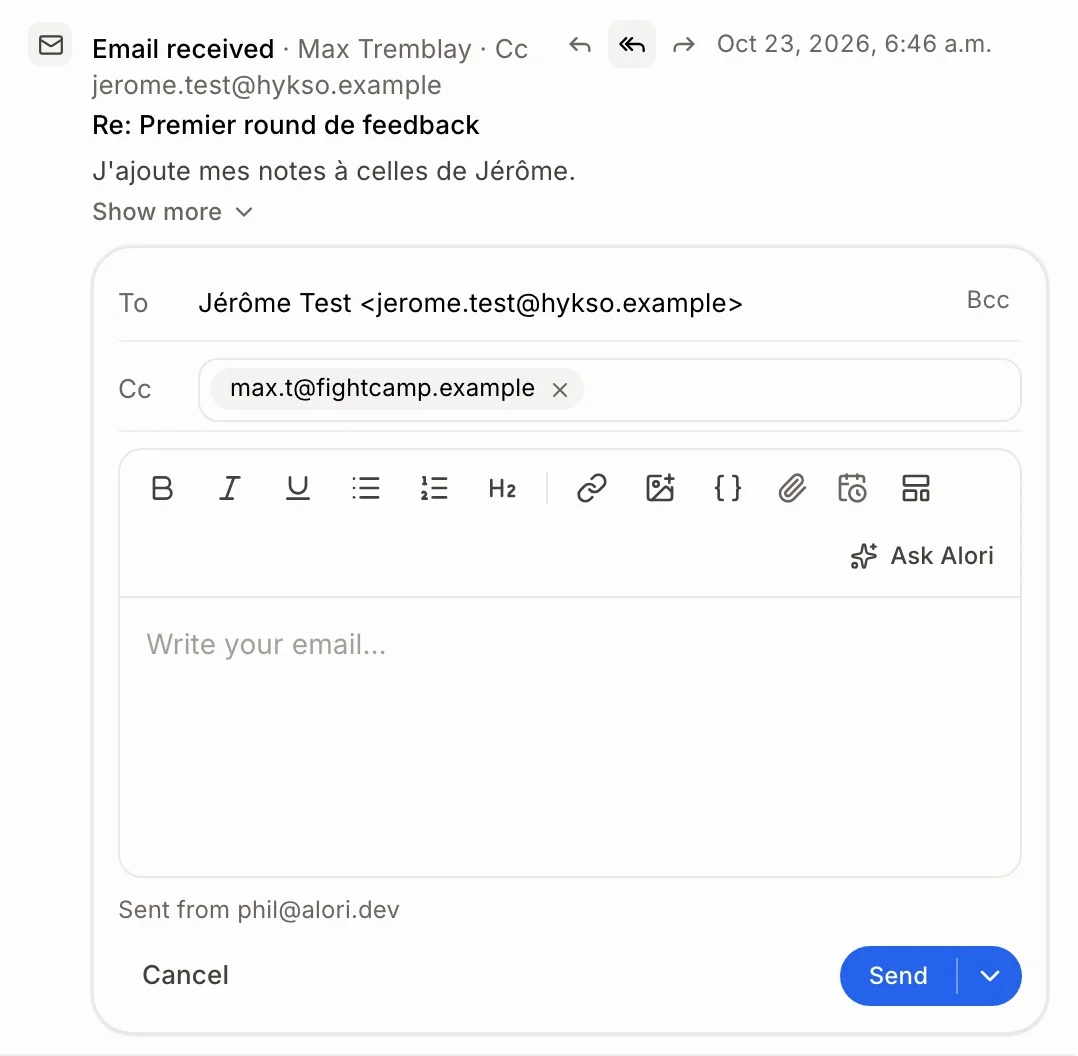
The email box opens right under the email. To is the person the email was with. Cc already has everyone else who was on it: remove anyone with the ×, or type more addresses. The subject stays the same ("Re: …"). It's the same editor as your Email page: formatting, files, templates, your meeting links, and Ask Alori to write the reply for you.
Step 3: Send it
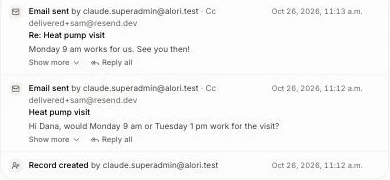
Click Send, or press Cmd+Enter (Ctrl+Enter on Windows). To send it later, click the arrow next to Send and pick a time. Your reply shows at the top of the History, in the same email thread. Changed your mind? Click Cancel.
Click: Send
Forward it to someone else
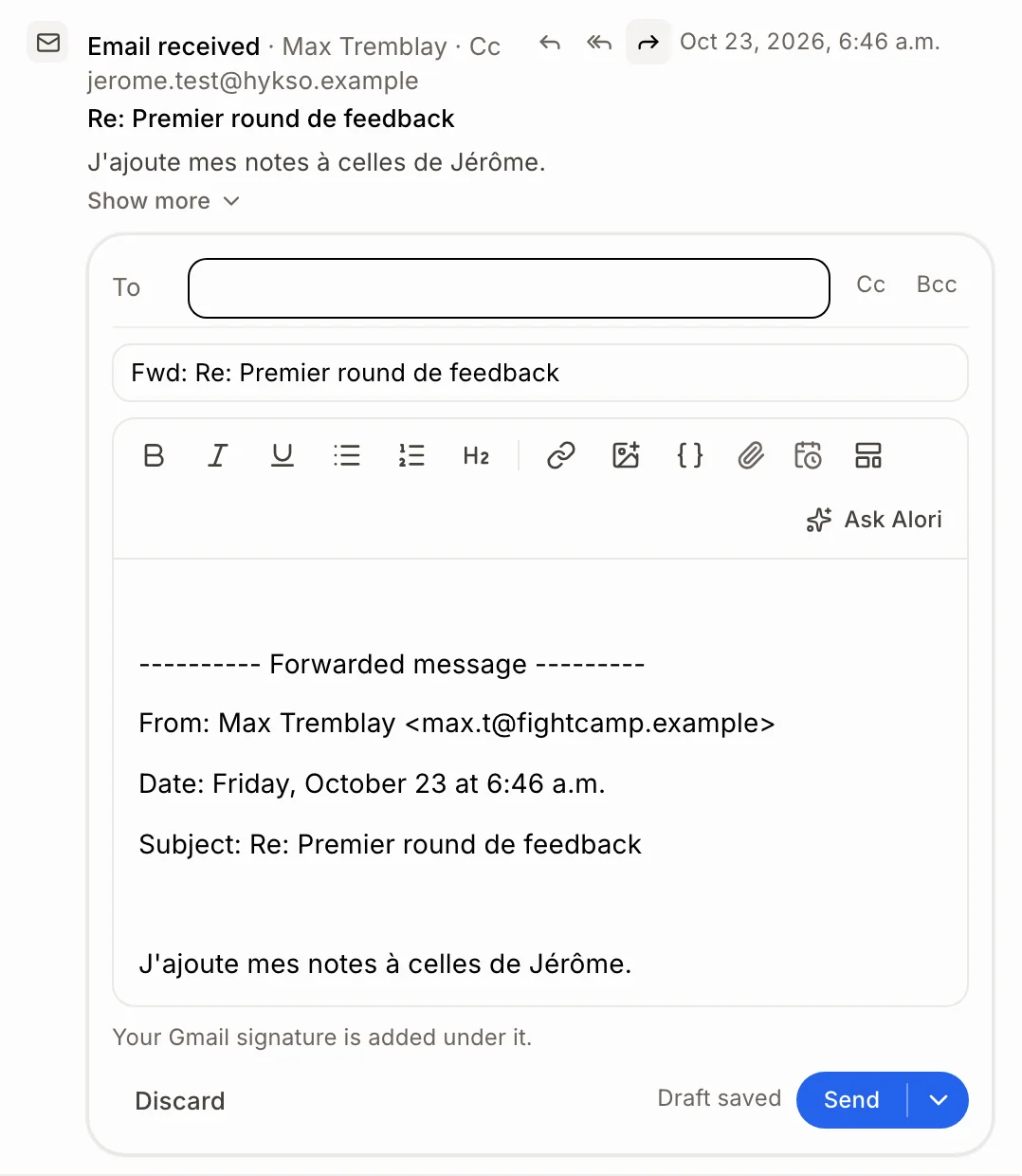
Click Forward next to the email's time. A new email opens under it with the original copied in, pictures and files included, under a "Forwarded message" line. Type who it goes to in To, add a note above if you like, then click Send. It leaves from your Gmail, so connect Gmail first (the Forward button shows once it's connected).
Click: Forward › type the address › Send
Good to know
To read the whole email first, signature and pictures included, click it in the History. Click it again to fold it.
Your own address and the app's address are never copied.
On a deal with several people, the reply goes to the person that email was with.
You can also ask Alori: "reply all to Dana's last email and say Monday works", or "forward Dana's last email to max@example.com".
If it doesn't work
No Reply button next to the email. Your role can't write to customers. Ask an admin to give you Conversations.
No Forward button. Forward leaves from your own Gmail: connect it from Email.
"This customer has no email." Add an email to the customer's record.
The email shows "Email not sent". Click Retry under it. See How do I email a customer? for what each error means.