How do I see what an employee sees?
Open the employee and click See as employee. Their own page opens exactly as they see it, read-only.
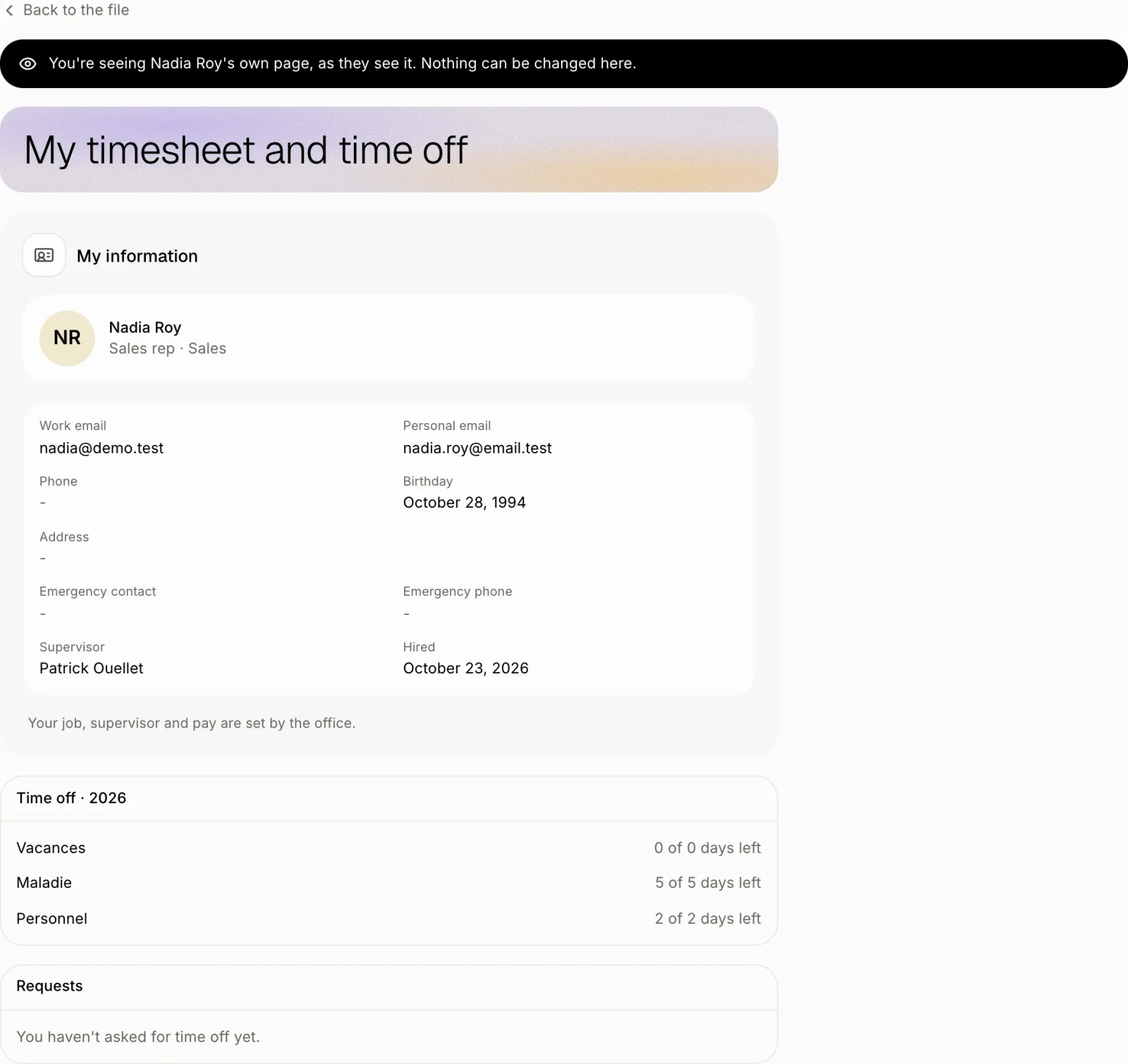
Open the employee and click See as employee. Their own page opens exactly as they see it: their information, documents to sign, timesheet and time off. Nothing can be changed there.
Also called: view as, preview employee page, impersonate, employee view, voir comme l'employé, vue employé, ce que voit l'employé
Step 1: Click See as employee
Go to Employees › Team and open the person. At the top right, click See as employee.
Click: Employees › Team › the person › See as employee

Step 2: Check their page
A black banner says you're seeing their page as they see it. Scroll to check what shows. Click Back to the file when you're done.
Good to know
Only people who can see employees have this button.
Pay and file notes never show on an employee's page.
If it doesn't work
The page is empty. The person has no file details yet. Fill them in with Edit on their file.