Who can see my meetings?
Your meetings are private to you. Click Only you on a meeting to share it with the whole team or with chosen teammates.
Only you see your meetings: the video meetings you hold, the in-person meetings you record and the ones you import, with their recording, transcript and summary. Teammates you invited to a meeting see it too. To share a meeting, click Only you on it and pick the whole team or just some teammates.
Also called: private meeting, share a recording, meeting privacy, permissions, visibility, réunion privée, partager un enregistrement, confidentialité des réunions
Step 1: Open the meeting
Open the meeting from Meetings or your Schedule. Under its title, Only you means nobody else on the team can see it.
Click: Meetings › your meeting

Step 2: Choose who can see it
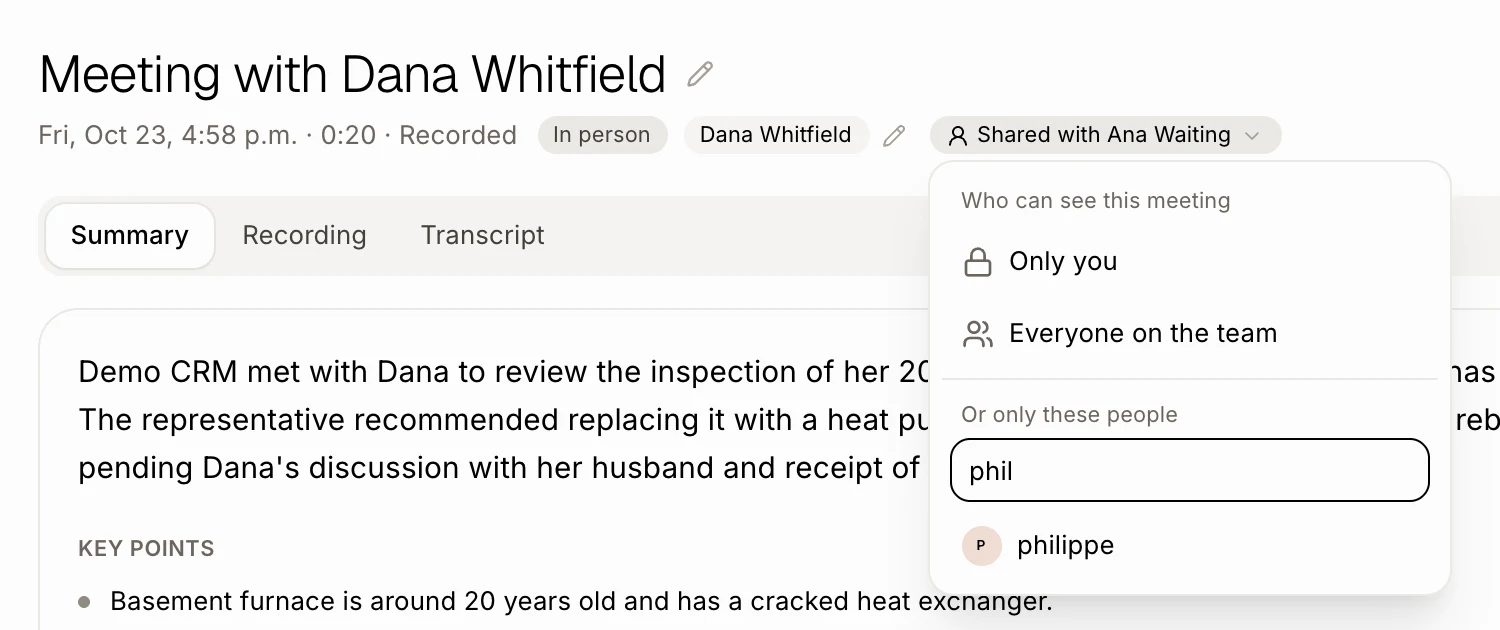
Click Only you. A small menu opens:
Everyone on the team: the whole team sees the meeting, its recording, transcript and summary, on the Meetings page and on the customer's record.
Or only these people: type a name in Type a name and press Enter, or click a teammate, to share it with them. Click them again to take them off. You can pick as many as you want. The chip then shows who, like Shared with Ana.
Only you: makes it private again.
It saves as soon as you click.
Click: Only you › Everyone on the team, or a teammate's name
You can also ask Alori: "Share my meeting with Dana with Ana" or "Share it with the team."
Good to know
Only the person who held the meeting can change who sees it. A teammate who can see someone else's meeting sees Shared with the team or Shared with you.
A meeting someone booked through your booking page belongs to the host of that booking.
Ask Alori and the bot only find meetings you can see.
If it doesn't work
A teammate can't find a meeting: it's still private, or not shared with them. The person who held it clicks the chip under the title and adds them.
Nobody by that name: check the spelling, or the person isn't on your team yet: add them on the Users page.
There's no menu when you click: you didn't hold this meeting, so only the person who did can change who sees it.