How do I connect my calendar?
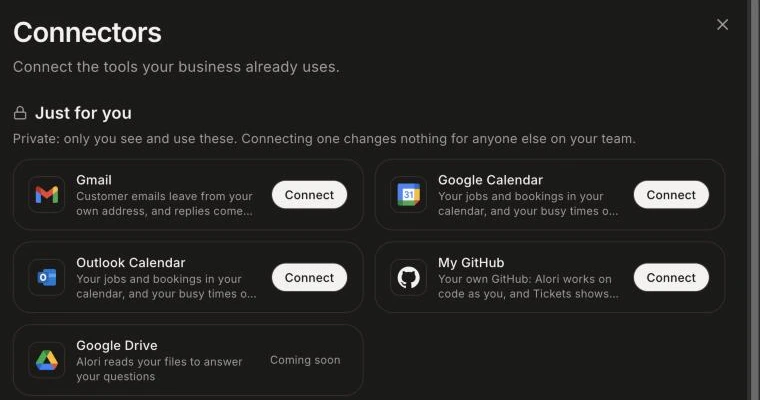
Open Connectors and click Connect on Google Calendar or Outlook Calendar, under Just for you. Your jobs and bookings go to your calendar, and your busy times show on the schedule. It's private to you.
Open Connectors and click Connect on Google Calendar or Outlook Calendar, under Just for you. Sign in and allow access. Your jobs and bookings then go to your calendar, and your busy times show on the schedule. Your calendar is private: connecting it changes nothing for anyone else on your team.
Also called: Google Calendar, Outlook, agenda, calendrier, sync my calendar, busy times, connecter mon agenda
Step 1: Open Connectors
Click the grid menu at the top right, then Connectors. Your calendars are under Just for you. A teammate who only uses the CRM finds Connectors in their own menu at the top right.
Click: Connectors › Just for you
Step 2: Connect your calendar
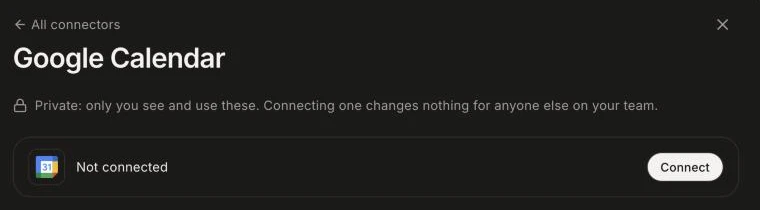
Click Connect on Google Calendar or Outlook Calendar. Sign in and allow access. You come back to Connectors with "Google Calendar is connected."
Click: Google Calendar › Connect
Step 3: Add another account
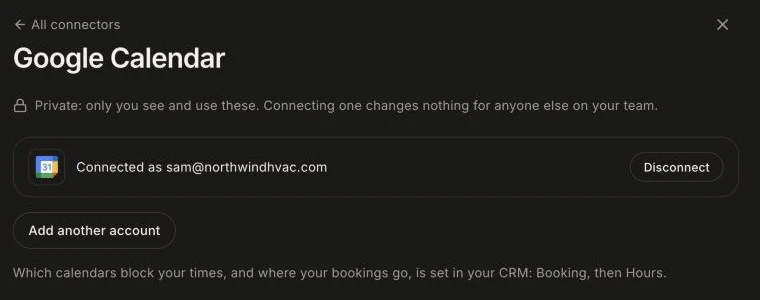
To add a work and a personal calendar, click Manage, then Add another account. You can connect up to 6 accounts, Google and Outlook together.
Click: Google Calendar › Manage › Add another account
Good to know
It's private. Each person connects their own calendars.
Which calendars block your times, and the one your bookings go to, are set in your CRM: Booking › Hours.
Teammates who can see your schedule see a private event as Busy, without its title.
To stop, click Manage › Disconnect on that account. Only your own account is unlinked.
If it doesn't work
"You have connected every account you can (6)." Disconnect one first.
Outlook asks for an admin's approval. Your work account's organization must approve Alori. Ask your IT admin.
The account shows "Needs reconnect". Click Reconnect next to it and sign in again.