How do I save a view of my tasks?
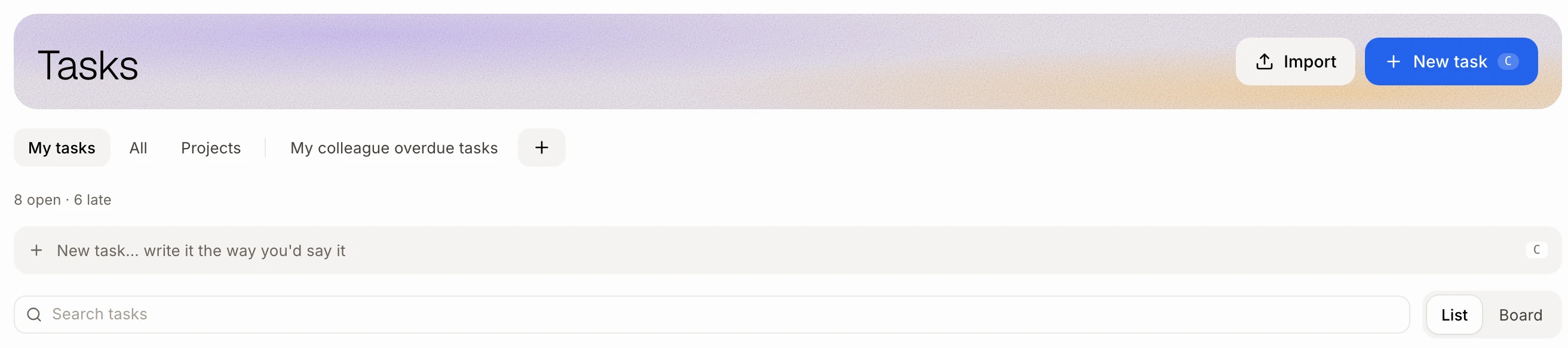
In Tasks, click + after the tabs, give the view a name and pick its filters. It becomes a tab the whole team sees.
A view is a tab in Tasks that keeps a set of filters, like "Late tasks" or "Julie's urgent work". Pick the filters once, save them, and the tab is there every time. Everyone on the team sees the same views.
Also called: saved view, saved filter, custom view, tab, filter tasks, task list, vue, vue enregistrée, filtre enregistré, onglet
Step 1: Make a view
Open Tasks and click + at the end of the tabs. Type a name, like Late tasks.
Click: Tasks › +
Step 2: Pick its filters
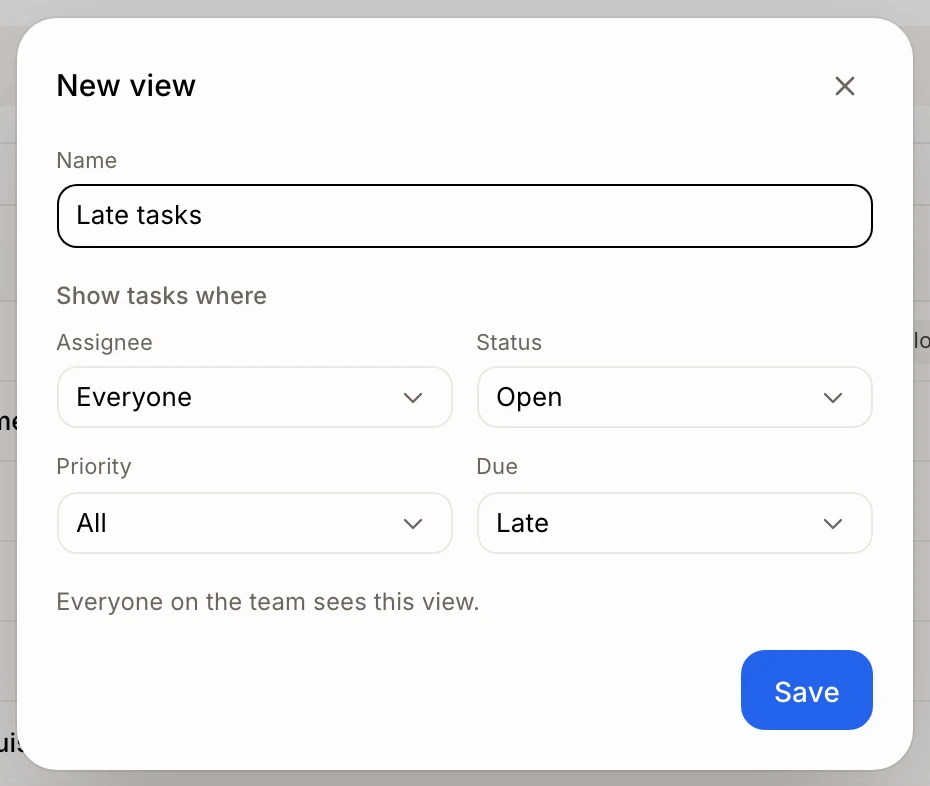
Under Show tasks where, choose Assignee, Status, Priority and Due, plus Project once you have projects. They start from the filters you had on screen. Leave one on All (or Everyone for Assignee) to keep every task.
Status › Open shows tasks to do, waiting or in progress. Due › Late shows open tasks past their day.
Click Save. The view opens as a new tab.
Step 3: Change a view
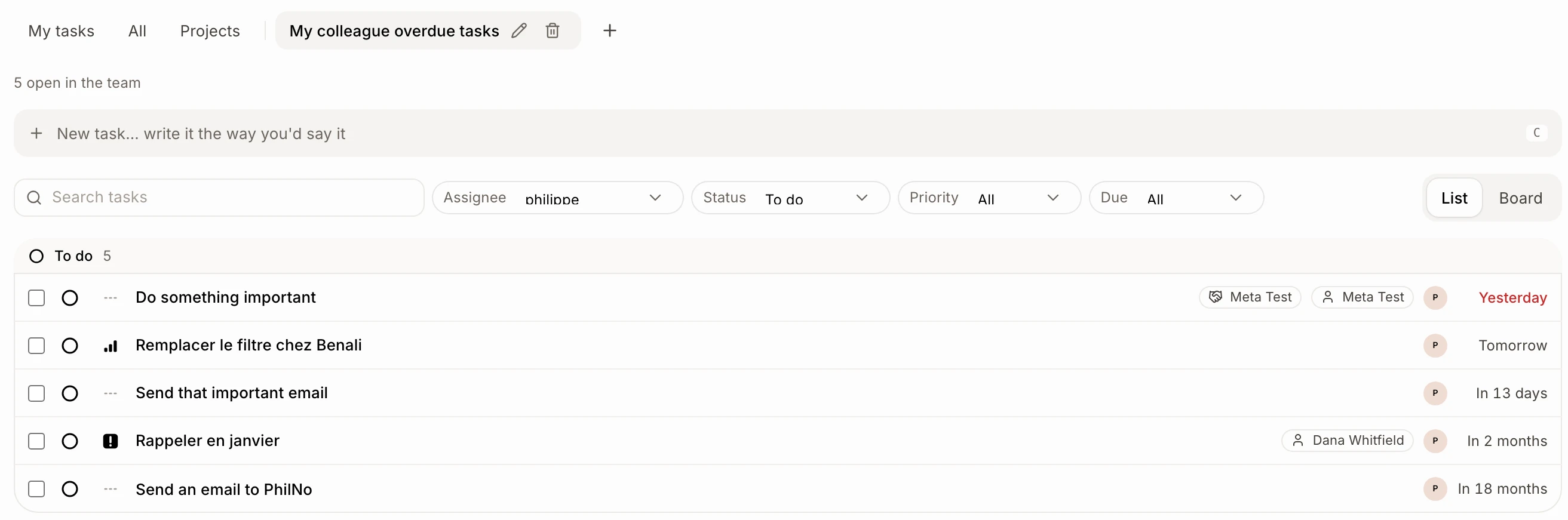
Open the view's tab and click the pencil. Change its name or filters, then click Save. You can also change a filter right above the list, or switch between List and Board: it saves right away, for the whole team.
To delete a view, click the trash can on its tab, then Remove. The tasks stay: only the view goes.
Good to know
A view keeps its own address, so you can bookmark it or send the link to a teammate.
With a view open, + starts a new view from that view's filters.
You can also ask Alori: "make a view of Julie's late tasks".
The team can save up to 30 views.
If it doesn't work
I don't see +, the pencil or the trash can. You can only look at tasks. Ask the owner for a role that can edit tasks.
A filter went back to All. The teammate or project it named was removed.