How do I turn on dark mode?
Open your account menu at the top right and turn on Dark mode. Alori and your CRM switch together, on all your devices.
Click your name at the top right, then turn on Dark mode. Alori's bar, its pages and your CRM all go dark at once, and stay that way on every device you sign in on.
Also called: dark theme, night mode, light mode, mode sombre, mode clair, thème sombre
Step 1: Turn on Dark mode
Click your name at the top right of Alori. In the menu, turn on the Dark mode switch. Turn it off to go back to light.
Click: your name › Dark mode
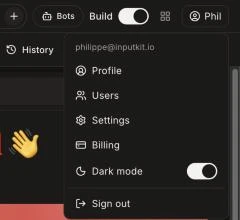
It's also in your Profile (your name › Profile › Display). You can also pick it inside your CRM: Settings › My account › Display › Look, then Light or Dark. It's the same setting: change it in one place and the other follows.
Good to know
It's just for you. Each teammate picks their own.
Until you pick, Alori follows your computer or phone's own light or dark setting.
You can also ask Alori: "put me in dark mode".
If it doesn't work
Your CRM didn't switch with Alori: your app may be on an older version. Open Build and ask Alori to update your app to the latest version, then publish.