How do I approve my team's timesheets?
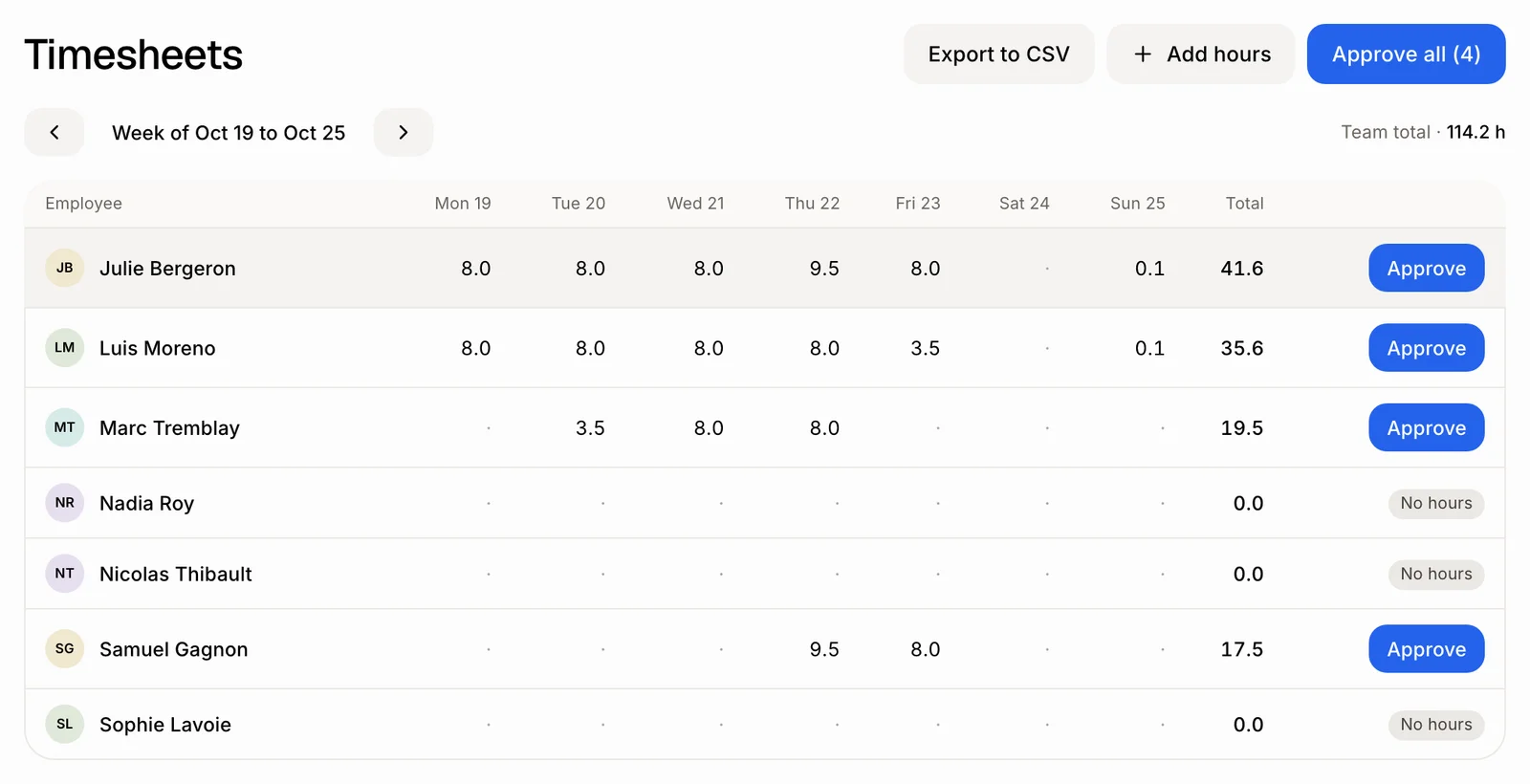
Go to Employees › Timesheets. Each person has one row for the week: click Approve on it, or Approve all. Reopen undoes an approval.
Go to Employees › Timesheets. Each person has one row with their hours for the week. Click Approve on a row, or Approve all to approve every week that's ready. An approved week shows Reopen if you need to change it.
Also called: approve hours, timesheet approval, punch card, weekly hours, approuver les heures, feuilles de temps, pointage, semaine de travail
Step 1: Open the week
Go to Employees › Timesheets. The week shown is this week. Use the arrows to go to the previous or next week, and This week to come back. Each row shows the person's hours for each day and their total. Team total adds everyone up.
Click: Employees › Timesheets
Step 2: Check someone's lines
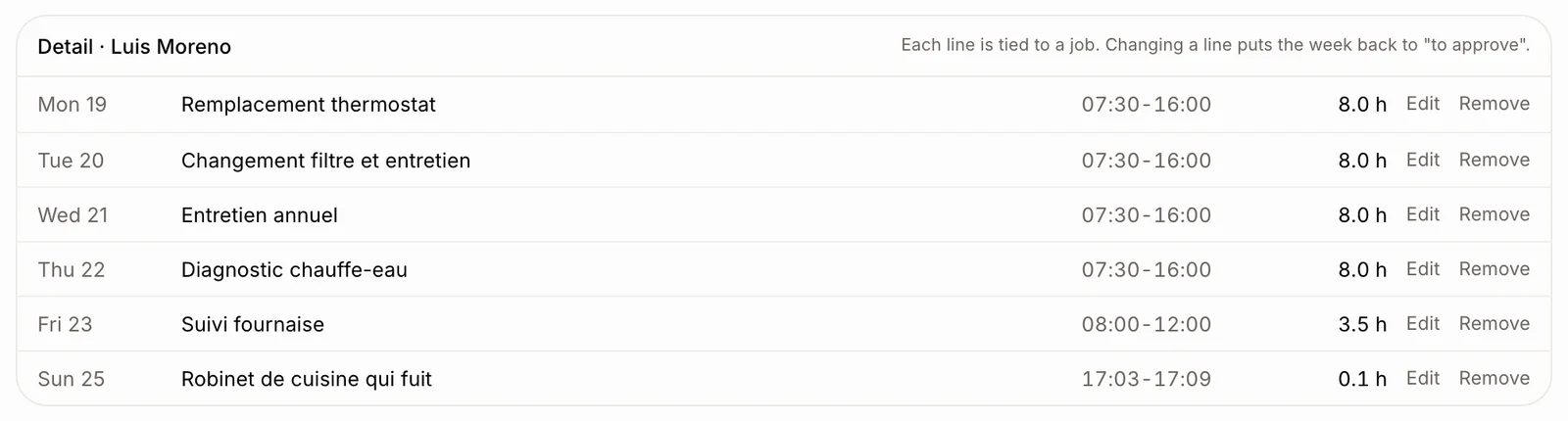
Click a person to see Detail with their lines: the day, the job, the start and end, and the hours. Click Edit to fix a line, or Remove to delete it. Changing a line puts the week back to To approve.
Step 3: Approve
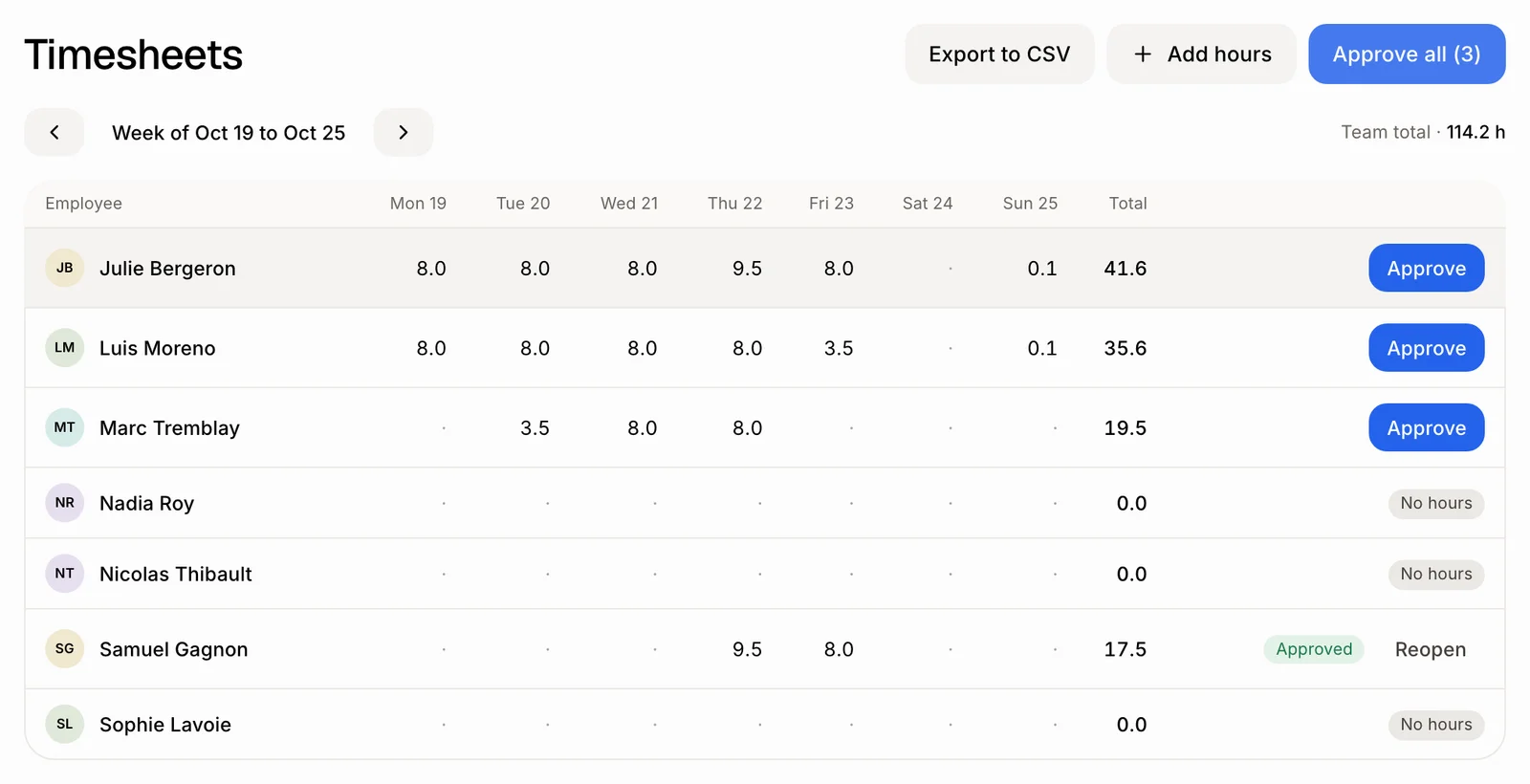
Click Approve on a person's row. It then shows Approved, with Reopen beside it to undo. To approve every week that's ready at once, click Approve all: the button shows how many weeks it approves, then "Everything is approved".
Click: the row › Approve
Step 4: Add forgotten hours
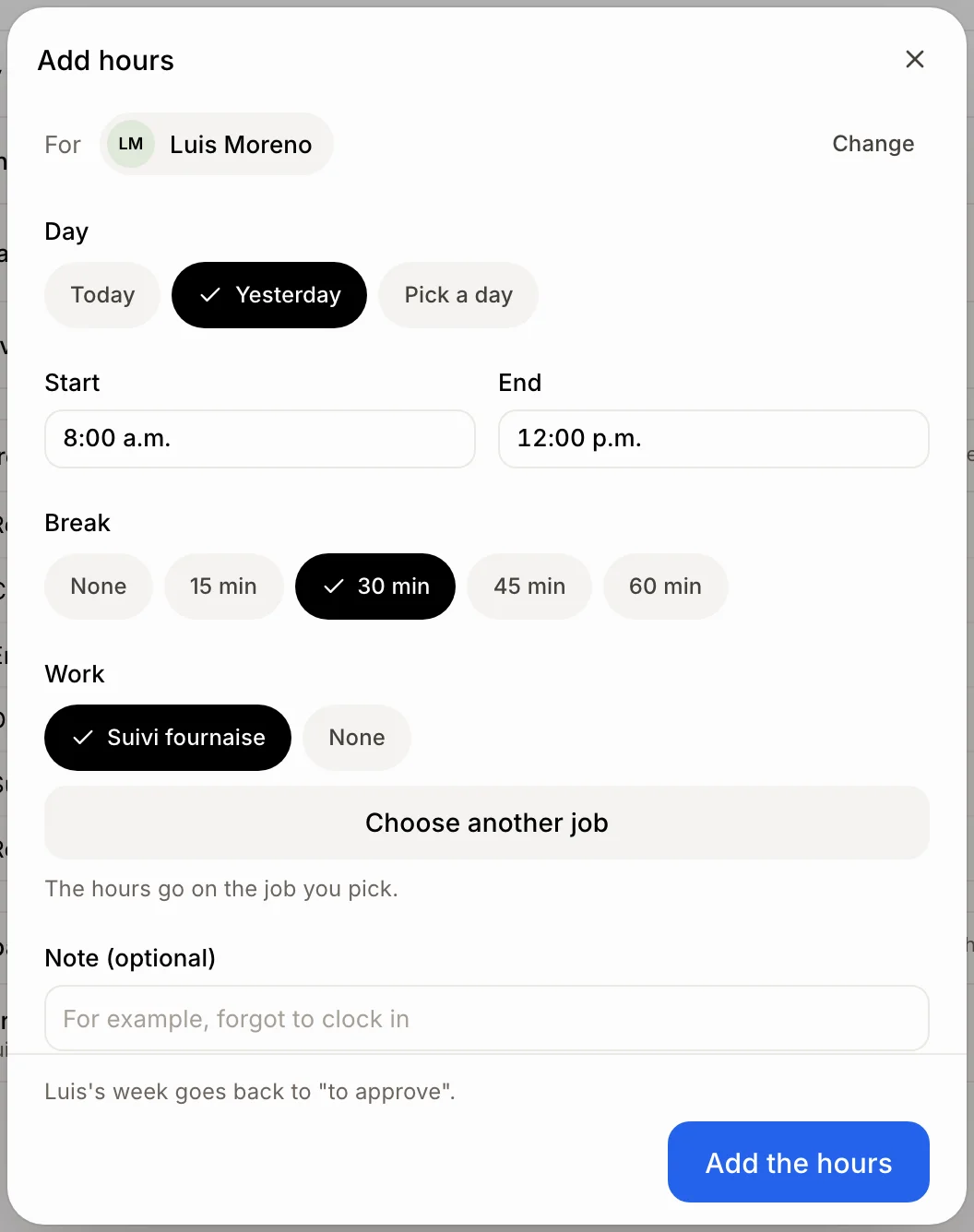
Click Add hours. With a person picked in the list, the hours are for them (Change picks someone else). Otherwise, pick who under For. Choose the day, the times and the job, then click Add the hours.
Click: Add hours › For › Add the hours
Good to know
A row with Clock running or No hours can't be approved yet.
The Overview says how many of last week's timesheets wait for you.
Only hourly people have a row. People on a Fixed annual salary keep no timesheet.
Export to CSV makes a file of the hours for your payroll provider.
You can ask Ask Alori: "Approve Marc's hours for this week" or "Approve everyone's hours for last week."
If it doesn't work
"This week has no finished hours to approve." A clock is still running, or the week has no hours.
"The end must be after the start." Check the times of the line.
No Approve button. You can see employees but not edit them.