How do I filter and save views of deals, customers and companies?
Above the list, pick a quick filter like Owner or Create date, add others with +, then click Save as a view. The view becomes a tab the whole team sees.
A view is a tab above your Deals, Customers or Companies list that keeps a set of filters, like "Pipeline Alan" or "Leads from the website this month". Set the filters once, save them, and the tab is there every time. Everyone on the team sees the same views.
Also called: saved view, saved filter, quick filter, custom view, tab, filter deals, filter customers, filter companies, vue, vue enregistrée, filtre rapide, onglet
Step 1: Filter the list
Open Leads & deals and switch to List, or open Customers or Companies. Above the list are quick filters, like Deal owner, Create date and Close date on deals (Owner on customers, Company owner on companies). Click one and pick a value: the list changes right away.
Click: Leads & deals › List › Deal owner
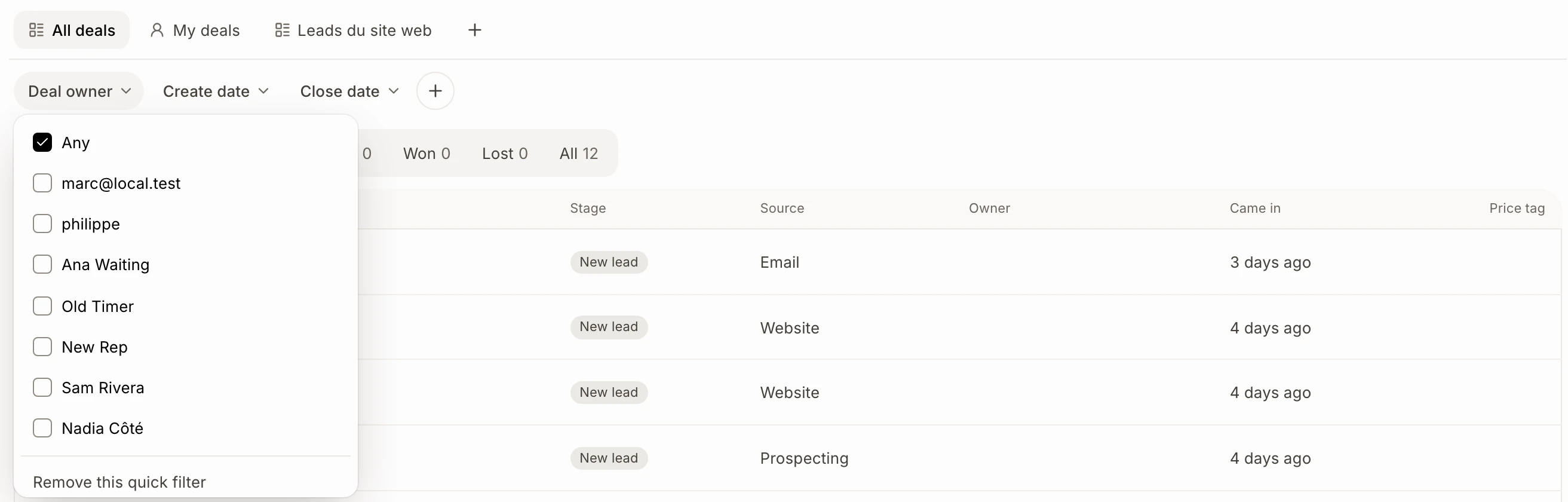
A filter that is on reads like Deal owner: Alan. Click its × to take it off, or Clear filters to take them all off.
Step 2: Add a quick filter
Click + after the quick filters. Every property of the list is there, like Company name, Website, Industry, People and your own fields. Search or pick one: it joins the bar. The ones already on the bar have a check: click one again to take it off.
Click: + › Company name
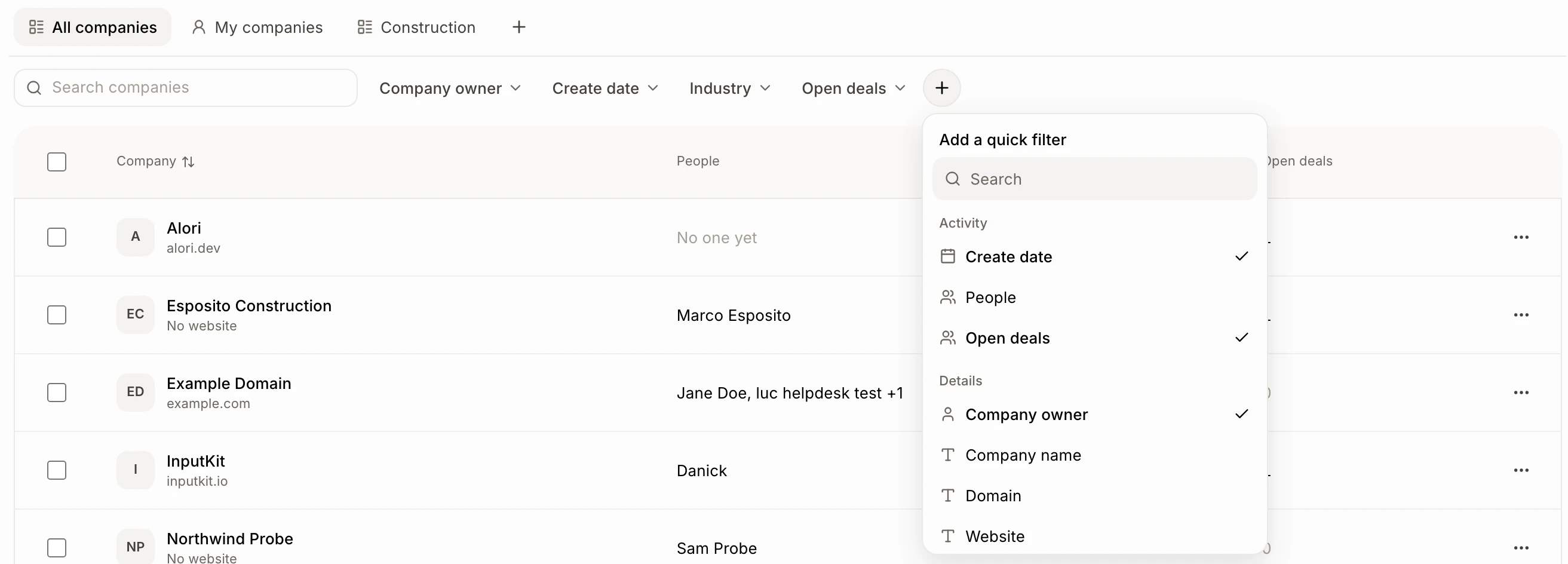
Each filter offers what fits it:
A text: type words and click Filter to keep the records that contain them, or pick Is known or Is unknown.
A date: Today, This week, This month and more.
A choice, or yes/no: pick the value.
People and Open deals: Has some or None.
To take a quick filter off the bar, open it and click Remove this quick filter.
Step 3: Save it as a view
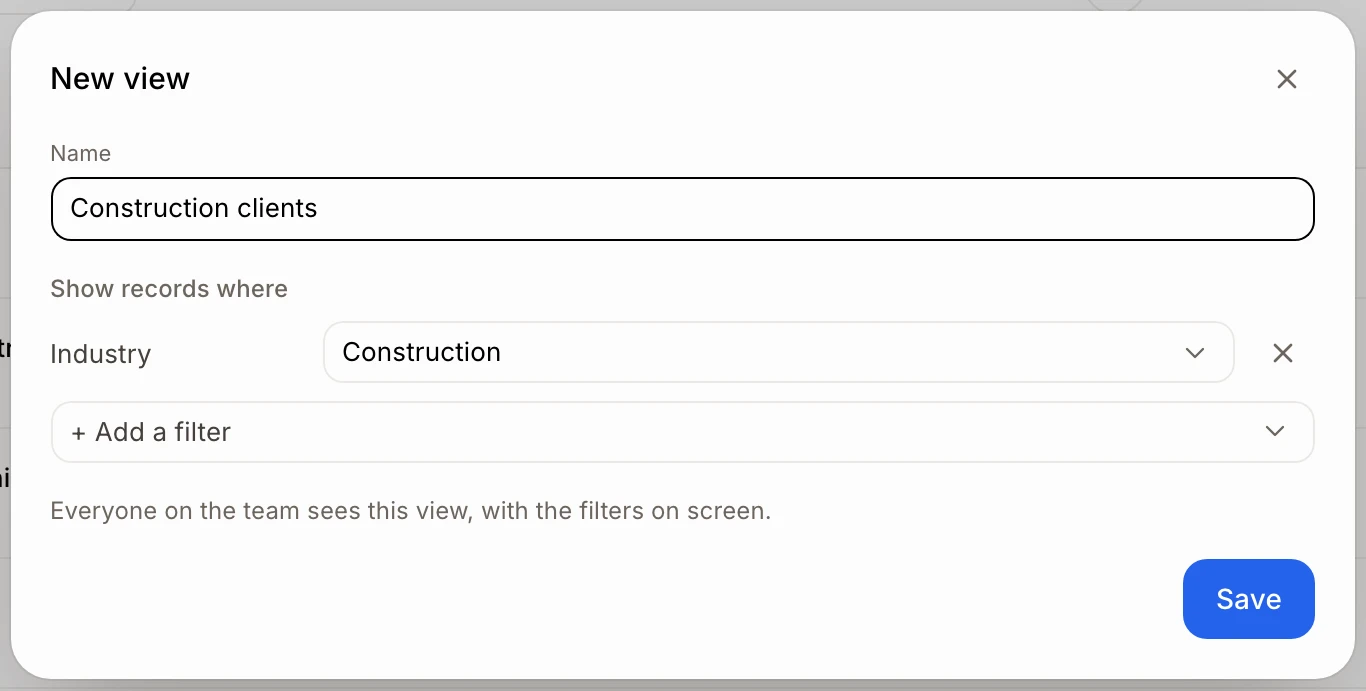
Click + at the end of the tabs, or Save as a view. Type a name, then pick its filters under Show records where: click + Add a filter, choose a property (like Industry or Company owner) and its value. The filters on screen are already there. Click Save: the view opens as a new tab.
Click: Companies › + › + Add a filter
Step 4: Change a view
Open the view's tab and click the pencil: change its name or its filters, then click Save. You can also change a filter right above the list: it saves right away, for the whole team. To delete a view, click the trash can, then Remove: the records stay, only the view goes.

My companies, My deals, My customers
Right after All companies is My companies: the companies you own. Leads & deals has My deals and Customers has My customers. Filter further there, then save it as a view.
Good to know
A view on Deals remembers its pipeline: opening it takes you to that pipeline's list.
A view keeps its own address, so you can bookmark it or send the link to a teammate.
Dates count from today: This week runs Monday to Sunday.
You can also ask Alori: "make a view of Alan's deals closed this month".
The team can save up to 30 views on each list.
If it doesn't work
I don't see My companies. Sign in first: it shows the companies you own.
I don't see Save as a view, +, the pencil or the trash can. You can only look at this list. Ask the owner for a role that can edit it. You can still filter for yourself.
I don't see the owner filter (Deal owner, Owner or Company owner). It shows once the team has more than one person.
My own field isn't in the list. It was archived in Settings. Bring it back to filter by it.