How do I keep a task private?
Turn on Private when you add the task, or when you open it. Only you and the person it's given to will see it, not even the owner.
Turn on Private when you add the task, or later when you open it. A private task is only seen by you and the person it's given to. Nobody else sees it, not even the owner or a manager.
Also called: private task, personal task, hidden task, medical appointment, tâche privée, tâche personnelle, rendez-vous personnel
Step 1: Add a private task
Click New task, write the task, then click Private so it turns black. Click Create.
Click: Tasks › New task › Private › Create

Step 2: Make a task private later
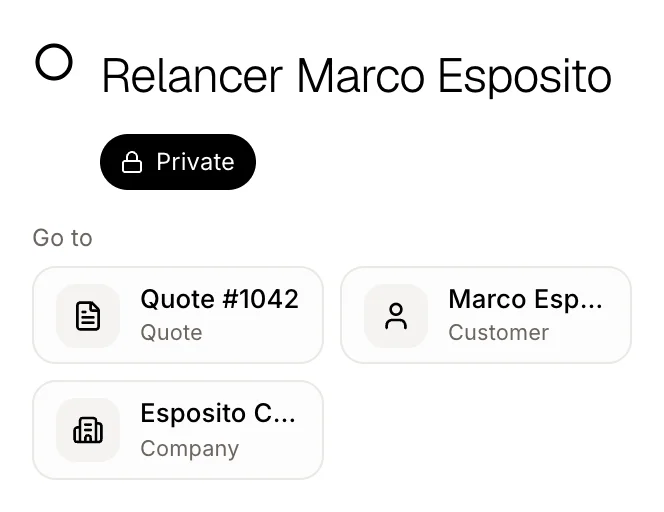
Click the task. Under its title, click Private so it turns black. It works on tasks Alori made for you too. Click it again to share the task with the team.
Click: the task › Private
Step 3: Spot your private tasks
A lock shows on a private task in your list.

Good to know
If you give a private task to a teammate, they see it too. Nobody else does.
Alori's chat, and Claude through Alori, can make a task private when you ask, like "add a private task: dentist Friday".
Your website bot never sees private tasks.
If it doesn't work
"Only the person who made this task or has it can make it private." You can't hide a teammate's task. Ask them to do it.
Private is greyed out. You didn't make this task and it isn't given to you. Ask the person who has it.