How do I put my own picture on the chat button?
In Front desk › Settings, under What visitors see, click the round picture beside Chat button and pick your picture. Your website's chat button shows it.
In Front desk › Settings, under What visitors see, click the round picture beside Chat button and pick your picture. The round button that opens the chat on your website shows it right away. Until you pick one, it shows a chat icon in your website's color.
Also called: chat icon, launcher, bubble picture, chat bubble image, logo on the chat, bouton du chat, icône du chat, image de la bulle
Step 1: Open Front desk settings
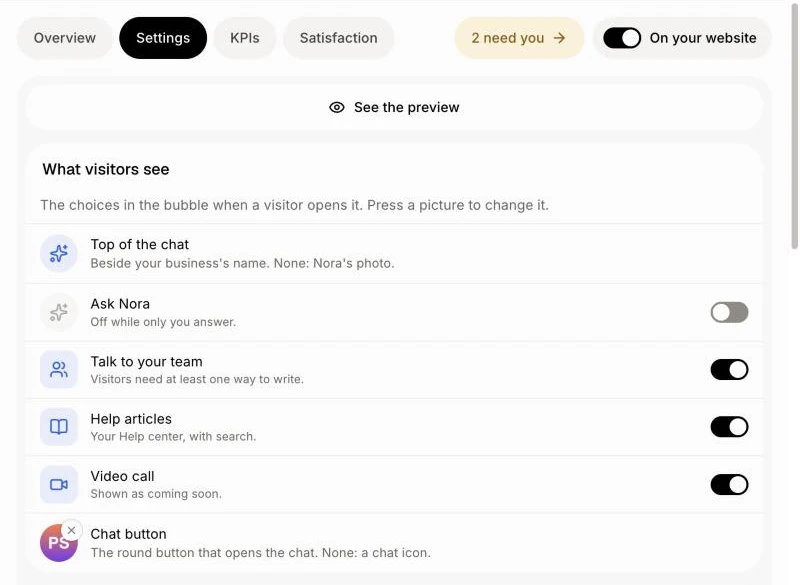
In your CRM, click Front desk in the menu, then Settings. The What visitors see card lists every picture of the chat.
Click: Front desk › Settings
Step 2: Pick your picture
At the bottom of What visitors see, click the round picture beside Chat button and pick a JPG, PNG or WebP picture, 5 MB at most. A square picture, like your logo, fits best: it fills the circle. To change it, click it again. To go back to the chat icon, click the small x.
Click: What visitors see › Chat button

Step 3: See it on your website
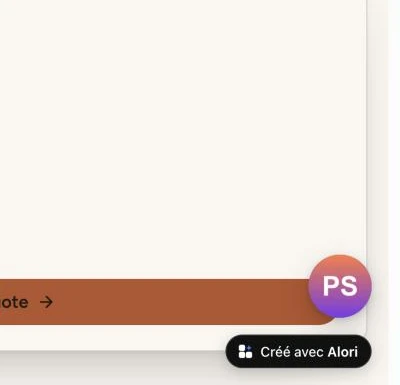
Open your website: the chat button in the bottom right corner shows your picture. When a visitor opens the chat, it turns into an arrow that closes it. It shows on every website where you put the chat, too.
Good to know
You can also ask Alori: attach your picture and say "Put this picture on the chat button."
The Preview shows the button with your picture too.
If it doesn't work
"That picture is too big (5 MB at most)." Pick a smaller picture.
"Use a JPG, PNG or WebP picture." Save your picture in one of those types, then try again.
You can't click the picture. Your role can't change it. Ask the owner.